
 Launch
The easiest setup imaginable
No coding, no expensive consultants and no 300 page manuals. All the power features you need are easily configured from your Organization's Config panel.

Quick note: missionX is ready-to-go right out-of-the-box so none of these settings are actually mandatory for all the features to work. But, you do have the options to better adapt it to your organization as needed.
Accessing the Config panel
Access settings from within your Organization workspace.
Only admins can access the Config panel. See more on permissions
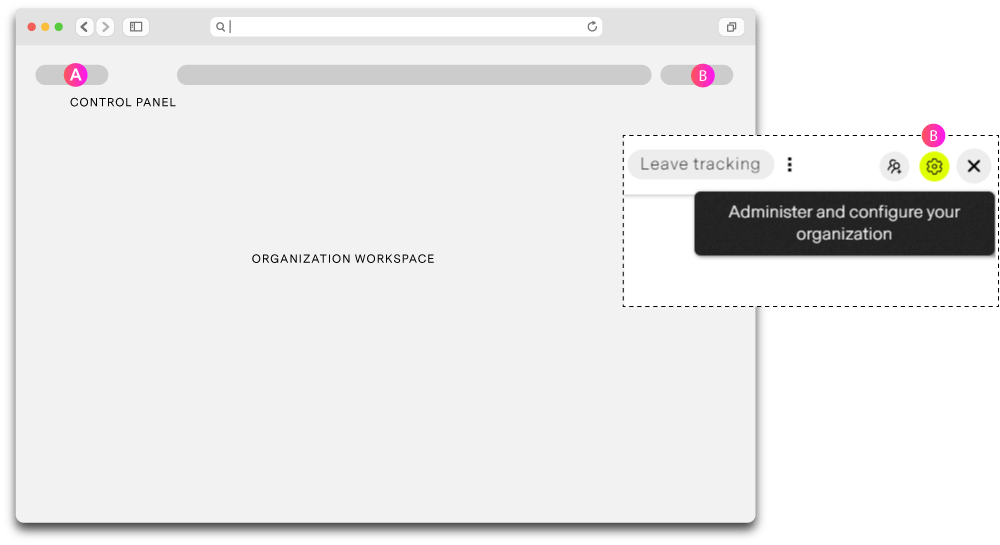
| Label | Description |
| A | From your Global Control panel select the Organization workspace you wish to access |
| B | If you have Admin access you will see the settings (gear) icon on the far right of your workspace tabs. This will open and close the Settings panel. |
Organization settings
From the Config panel you have complete control over how your Organization functions on missionX.
Remember: use as mush or as little as you want. If you do not plan to use missionX to its fullest and just want to do something simple like track tasks, then you don't actually need to do anything. Just skip and jump into creating projects.
If you only complete one or two sections they should be Roles and Departments. They are fast easy and critical to managing data at scale.
Fundamentals
The basic features that define your organization on missionX: logo, title, currency and an option to enable proposals.
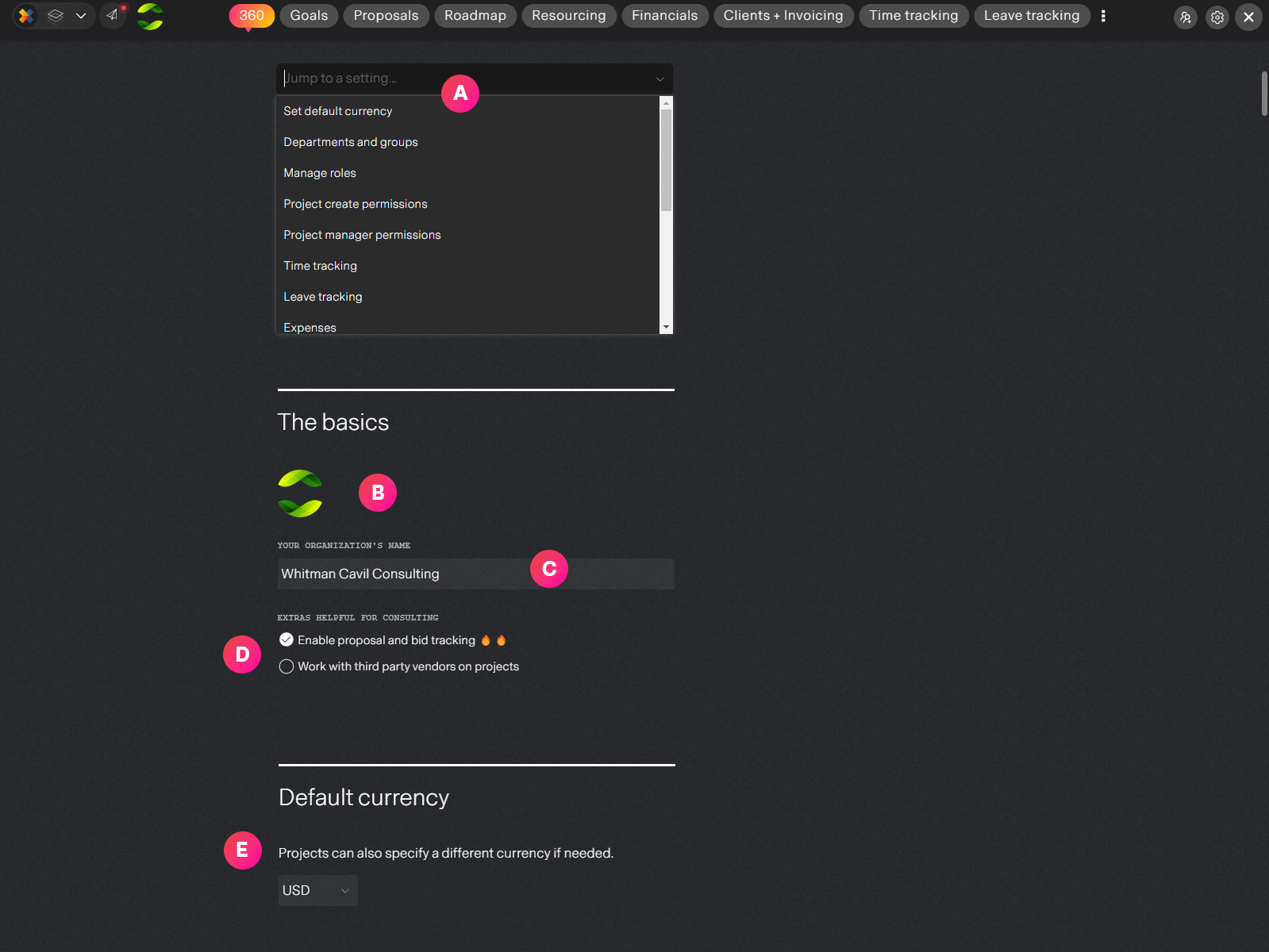
| Label | Feature | Description |
| A | Quick menu | Jump to any setting from anywhere on the page |
| B | Logo | Add, remove or change your organization's logo. PNG, JPG, GIF supported - round transparent PNG file recommended |
| C | Organization name | Edit your Organization's name |
| D | Options for consulting | Proposals and third-party partners. Optional for organizations that want to track proposals or keep track of third-party vendors and sub-contractors used on projects. |
| E | Default currency | Specify the default currency when creating projects and for aggregating financial data. missionX supports multi-currency projects and reporting so currency can be overridden at the project level anytime |
Departments and Groups
Define how your organization is structured by organizing people and projects into departments and groups.
Keep it simple: Instead of complex and shifting org trees, simply define departments and group then optionally use reporting tags or program tags to further refine your data.
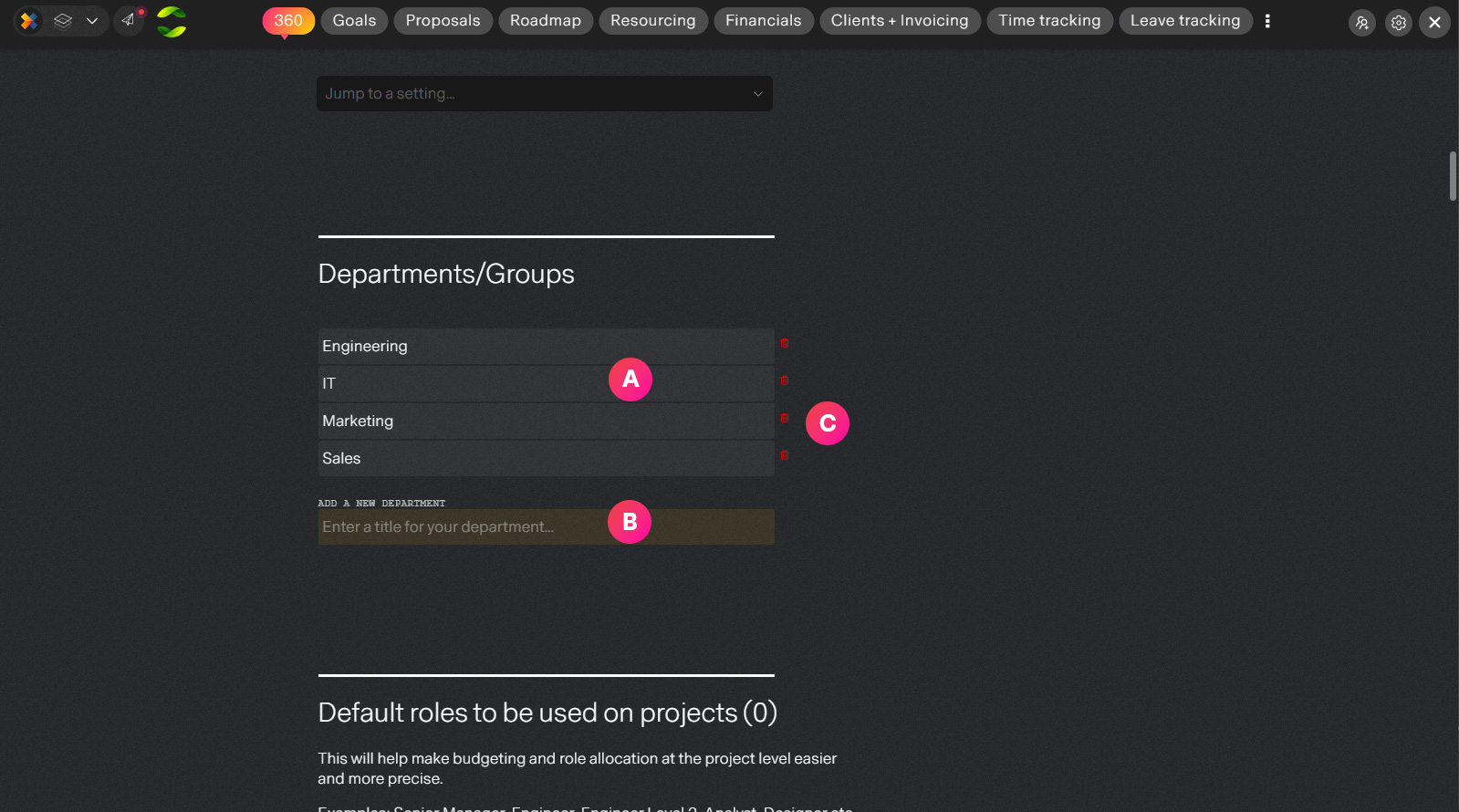
| Label | Feature | Description |
| A | Department name | Update the name for your group or department |
| B | Add a new department | Enter a title to create a new department or group |
| C | Delete department | This will delete an existing department and not make it available. Careful when deleting especially if you have ongoing projects or people assigned to the group. |
Organization roles
The most important of all settings. Not only are people assigned to roles within the organization (Director, Designer, Engineer etc...) but roles are also used to plan and budget projects.
Roles on projects help define your allocation needs. For example: "For this project we need 1 Engineer, 1 Senior Designer at the beginning and 2 Junior Designers near the end."
With this information you can use AI to assign people when ready and determine supply and demand for people across the organization.
By optionally adding a default cost or bill rate to a role missionX will automatically define, update and track project spending.
Important: Even if you are in the bad habbit of not tracking how much internal work is costing you, missionX will help you determine ROI, spot cost overruns and map effort across the organization simply by adding a default token cost to each role.
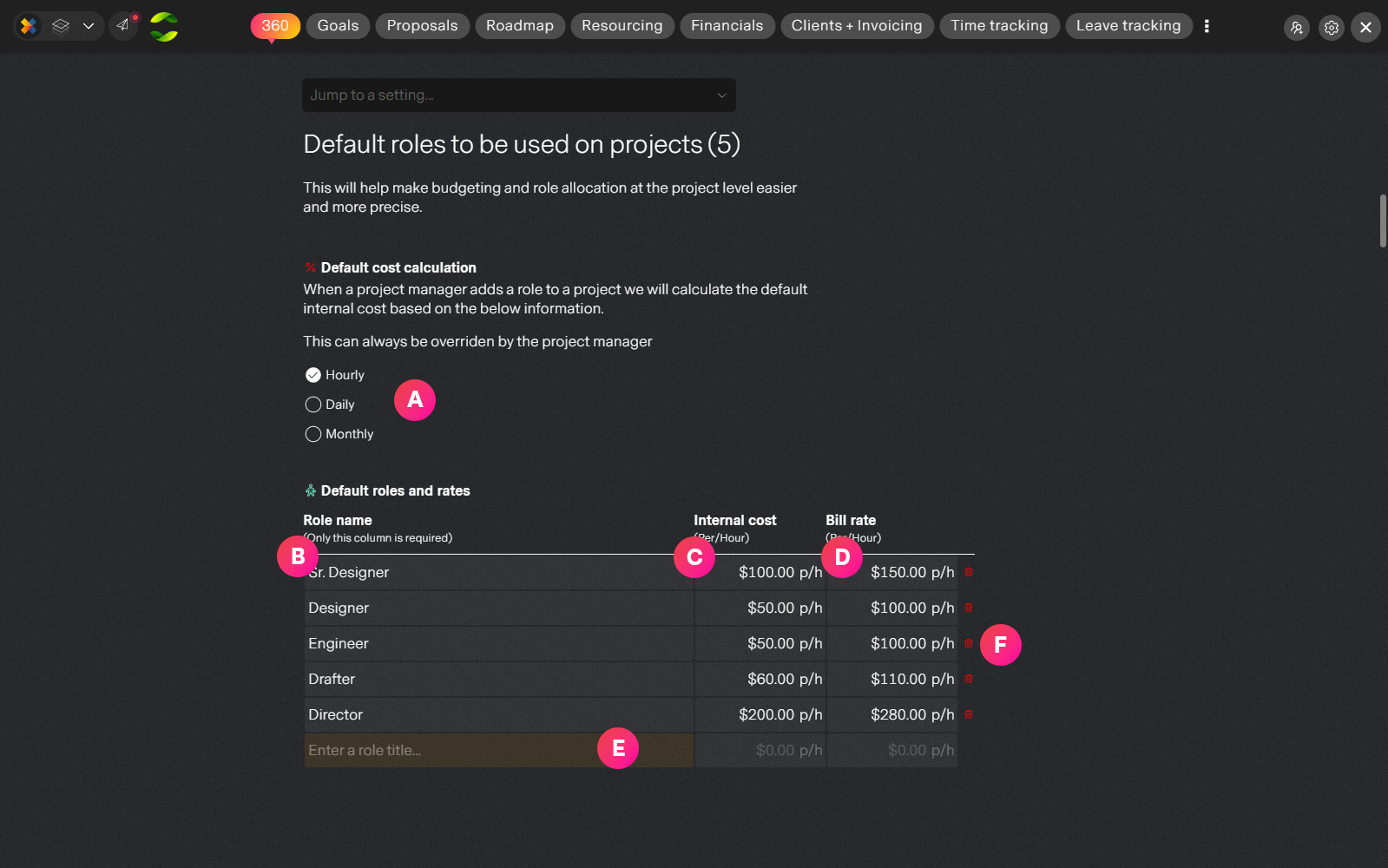
| Label | Feature | Description |
| A | Cost calculation | Hourly, Daily, Monthly. The default for calculating cost and revenue per role if Cost and Bill Rates are specified. This can be overridden at the project level |
| B | Role title | The name of the role. Can be updated. |
| C | Role cost | This is optional but we strongly recommend adding a token amount to each role. The insights this will generate are priceless whether you're a startup or enterprise. Can be overridden at the project level. |
| D | Bill rate | Optional for some, mission critical for others. This will determine invoicable revenue from billable time and material projects. Can be overridden at the project level. |
| E | Create a new role | Enter a title to create a new role |
| F | Delete a role | Be really careful with this because it will remove the role from all people assigned to it. It will not affect current and past project data that is referencing this role. It simply won't be available to use going forward |
Permissions for project managers
Decide on some key policies regarding how centralized your control is over projects and customers/clients.
Some companies are more flexible than others especially smaller companies where a project manager will not only create their own projects but create new client records and even PO numbers! This is probably an exception as most client based companies will have account managers creating these for the business.
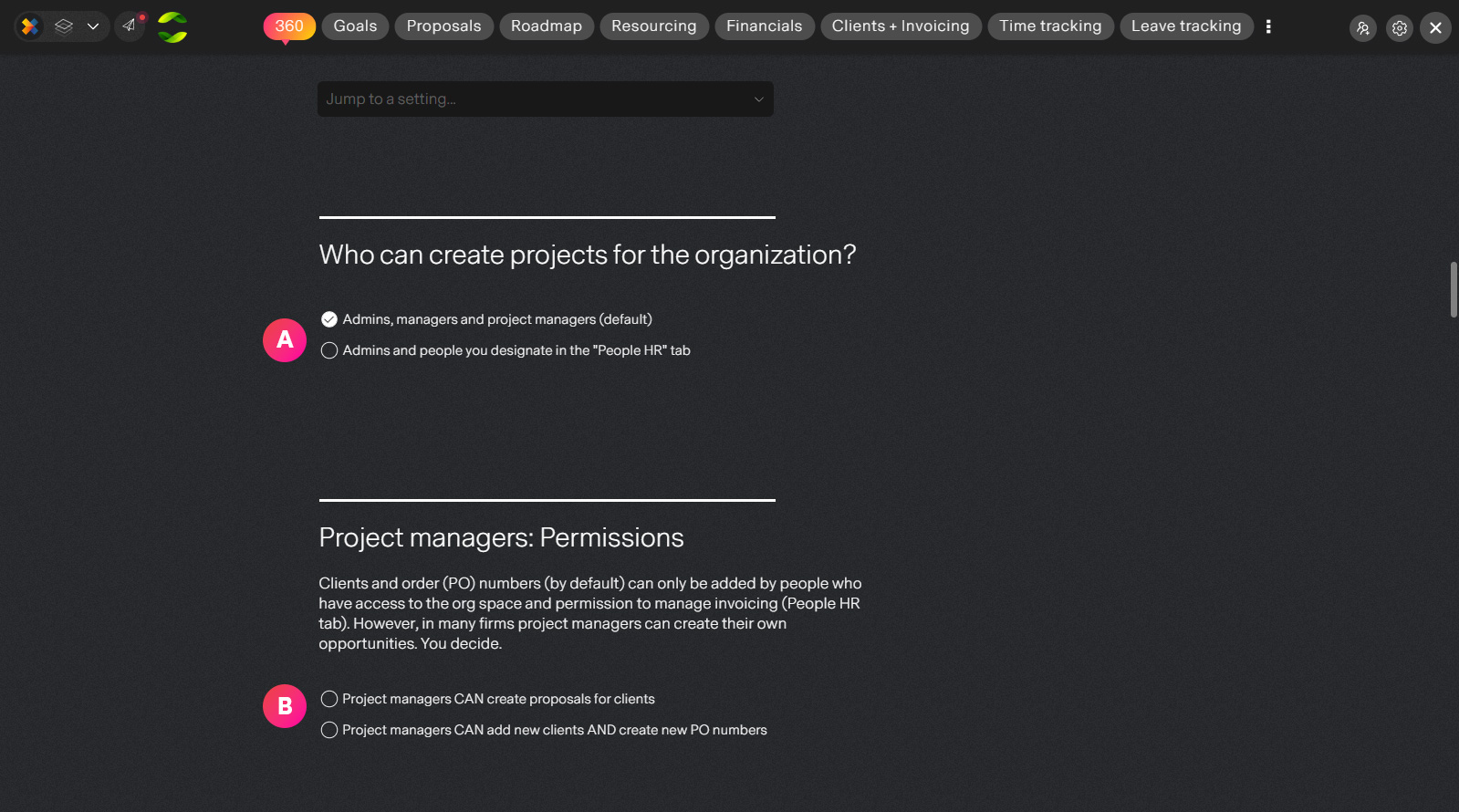
| Label | Feature | Description |
| A | Creating projects | By default people who have one of the following permissions will be able to create projects for the organization: Admin, Senior Manager, Project manager. You can however limit this further by selecting people infividually from the People HR tab using the "Can create projects" option. Admins can do anything so they cannot be excluded. |
| B | Project manager extras | Here you can define how much more capability to give project managers. Can project managers create proposals for customers? Can project managers create client records and PO numbers for the organization? You decide, but this is not recommended unless there is a clear process and guidelines in place for doing so because this can quickly spiral out of hand at scale resulting in possible garbage data in your system. |
Configure time tracking
Time tracking in missionX is extremly fast, simple and automatically tied into reporting and invoicing saving you a ton of time and headaches.
The default settings should be enough for most companies but the system offers some flexible settings to accommodate different needs.
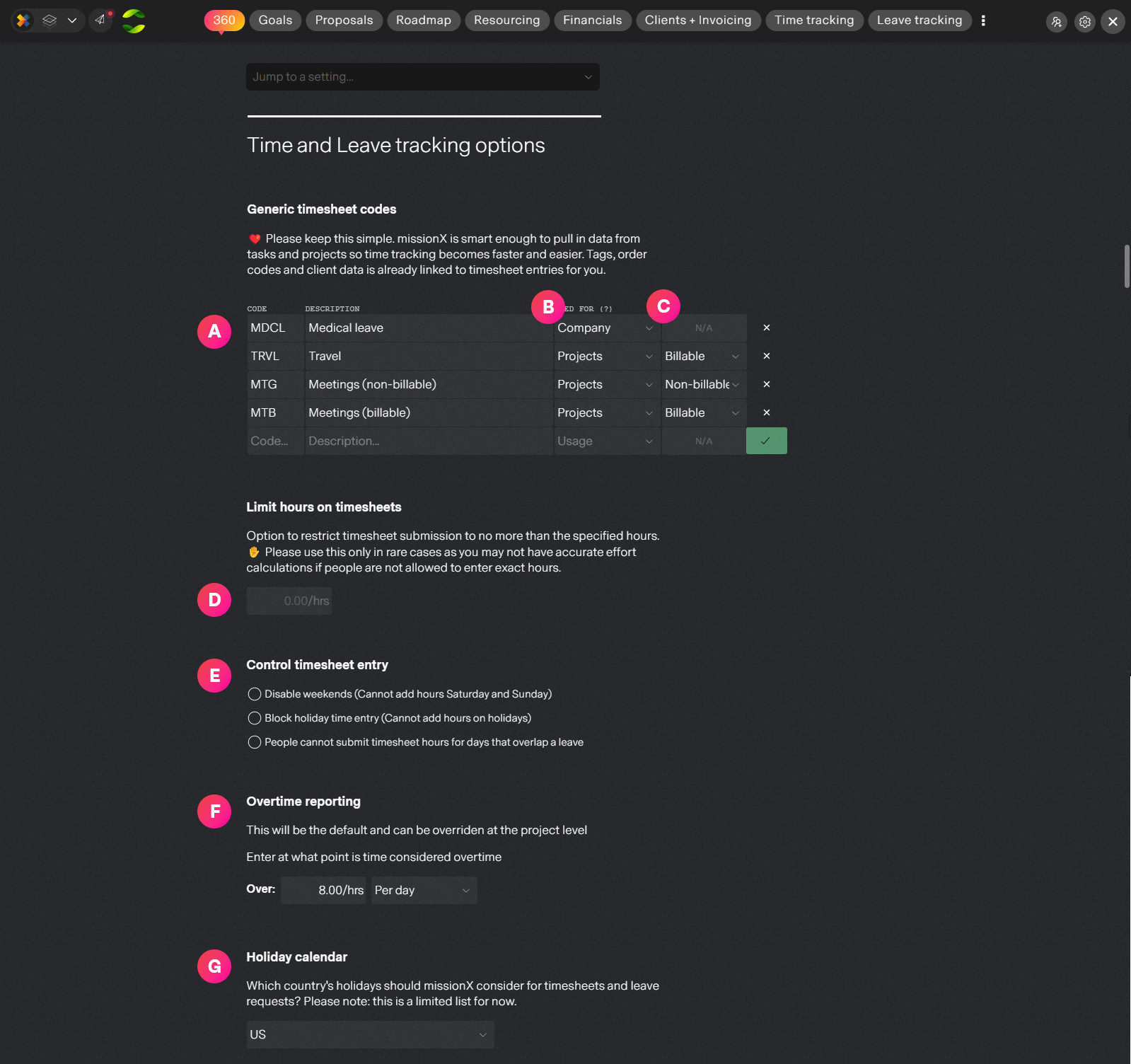
| Label | Feature | Description |
| A | Time entry codes and descriptions | missionX starts off with some basic generic timesheet codes that you can replace or delete. These will be available when people submit timesheets. The description is what people will see in the timesheet entry drop down. |
| B | Company or project code | There are two types of timesheets that can be submitted in missionX: project and company. Project codes can only be used for project timesheets and are approved by project managers like "Meetings" or "Travel" while company codes like "Medical" are used for company timesheets which are approved by an authorized organization approver. |
| C | Billable codes | If you define a project code as "Billable", then hours submitted against this code will be automatically available for invoicing on billable time and material projects. |
| D | Limit timesheet hours | This will allow you to restrict total hours to a certain number per day or per week. For example: Limit total hours per week to 40. Please use this only if really needed otherwise you will not be getting realistic analytics around profitability and ROI. |
| E | Restrict time entry options | Optional. Define what dates should be disabled. - Disable weekends on timesheets - Disable holidays (For certain countries. See G below) - Disable timesheet days that overlap holidays |
| F | Overtime defaults | missionX automatically calculates and reports on overtime hours. Set the default working hours per day or week, overtime will be calculated as hours over this period. This can be overridden at the project level. |
| G | Holiday calendar | Specify which country's holidays to use for timesheets and leaves. This is limited to a few countries for now but it is rapidly expanding. If your country is not yet included please just create a "Holiday" code to submit time against. |
Leave tracking setup
Managing leaves in missionX is not only easy but integrated as part of your overall risk and reporting profile.
missionX facilitates a modern, data-driven approach to leave approvals by automatically informing and consulting project managers who's project may be affected by a leave. This can then be accounted for when final approval is given or the leave rejected.
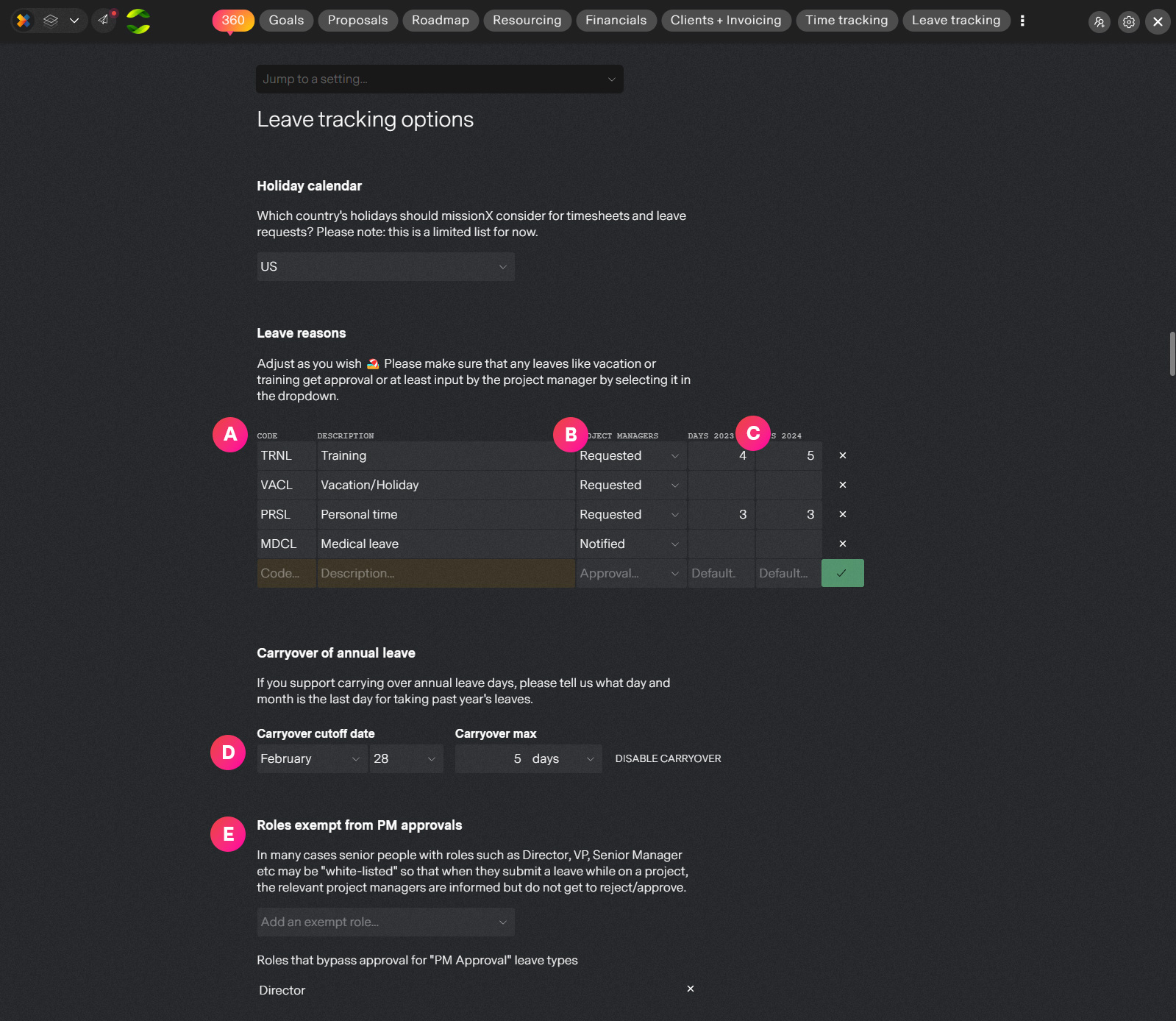
| Label | Feature | Description |
| A | Leave code and description | Enter a code for reporting purposes and a description that people will see when selecting the leave reason. |
| B | Project manager's input | missionX offers data-informed leave approvals, meaning leaves that affect projects will always ask the project manager for their vote before final approval. Some codes like holiday or training leaves should ask the project managers for input but things like medical or bereavement leave should bypass the process and go directly for final approval by an HR approver. |
| C | Default amount of leave | Enter how many days an employee is entitled to for each year. This can be overridden for each person in the People HR tab |
| D | Carryover | If your organization has a carryover policy for annual holiday balances not used within the allotted calendar year, you can specify the rules here. Basically, when is the carryove cut-off date and how much can be carried over before that date. Simplicity is key here, if your organization has more complex rules around each type of leave and degrading amounts then please contact us for more information: help@missionx.a |
| E | Exempt from PM approval | Optionsal. In many cases, senior roles like Vice President, Director, etc, may be exempt from the usual leave approval process where project managers are asked for their approval of a qualified leave request. Project managers are simply informed and the final decision can be made at the organization level by HR or whoever is authorized to approve leaves. |
Expense setup
Setup custom project expense codes for your organization. missionX starts you off with some basic codes and descriptions but its up to you to update these to reflect your company's accounting policy.
Expenses are fast, easy and tied directly to your budgeting, reporting and invoicing and come free with the Unlimited package.
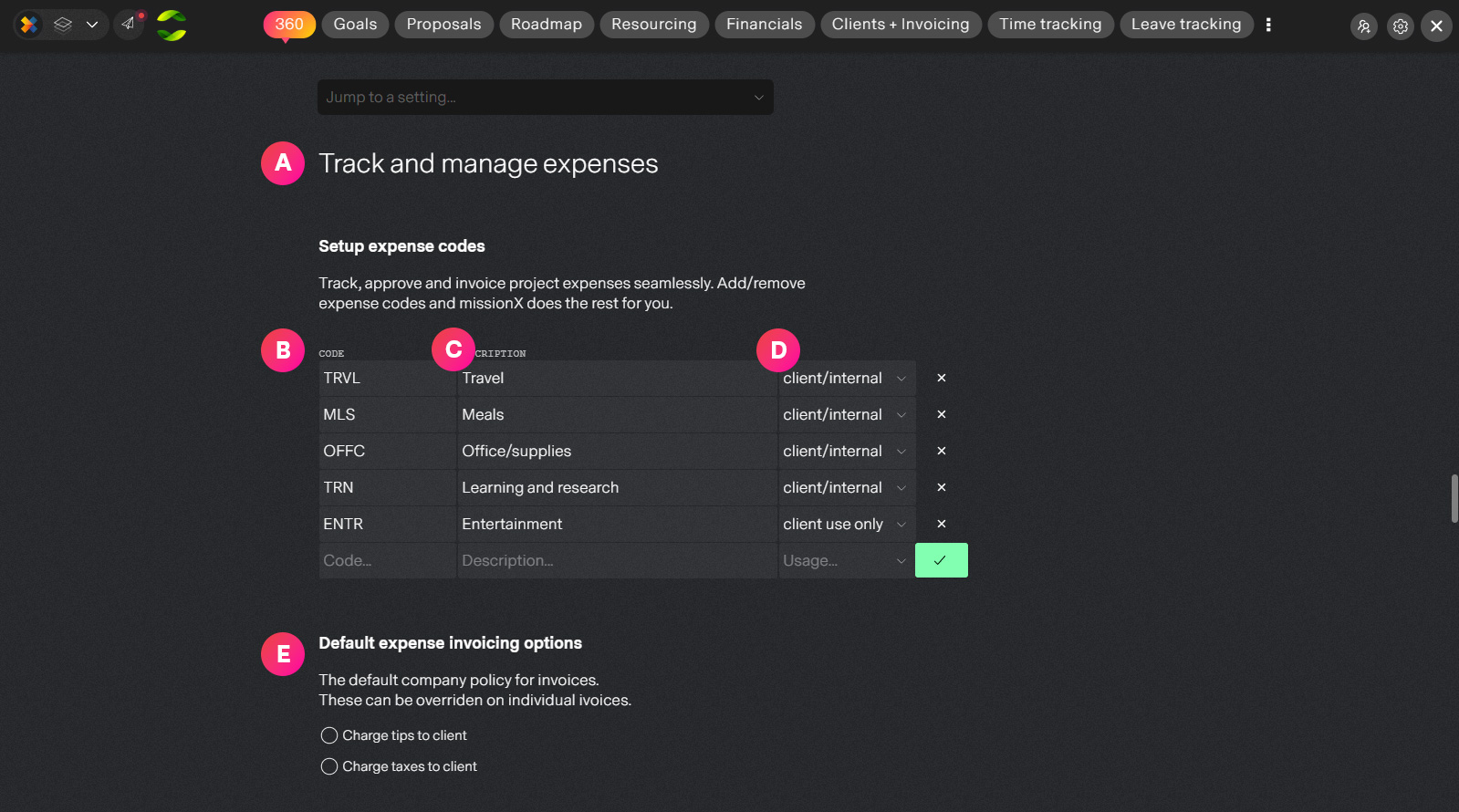
| Label | Feature | Description |
| A | Expense config | Expenses can be submitted against projects (organization coming soon) and simply require you define codes to be used. |
| B | Expense code | A unique identifier for this expense type to identify the expense even if the description changes |
| C | Expense description | Description of the expense code |
| D | Project types | Codes can be setup so that they are restriced to: Client projects, Internal projects or both. For example you may not allow "Entertainment" expenses for non-billable internal projects. |
| E | Invoicing options | Specify how you wish top handle tips and taxes be default. Can always be overridden when creating invoices. |
Organization access and two-factor authentication (2FA)
Organization workspace access is limited to people who are invited by email, by people with Admin or Senior Manager permissions . Here you need to specify which email domains are allowed in your organization.
In most cases your organization's email domain (mycompany.com) will suffice to restrict invites to only people who work for your organization. However, sometimes you may have different email domains such as: na.mycompany.com, us.mycompany.com, eu.mycompany.eu etc.
missionX also supports the rare case where people from different companies may be invited. For example your accountants, auditors, or subsidiaries. Up to you.
2FA - Most of missionX's world class security system is managed by Google Cloud Platform under the hood. But if you wish to refine and add an extra level with two-factor authentication (require a phone pin on login)
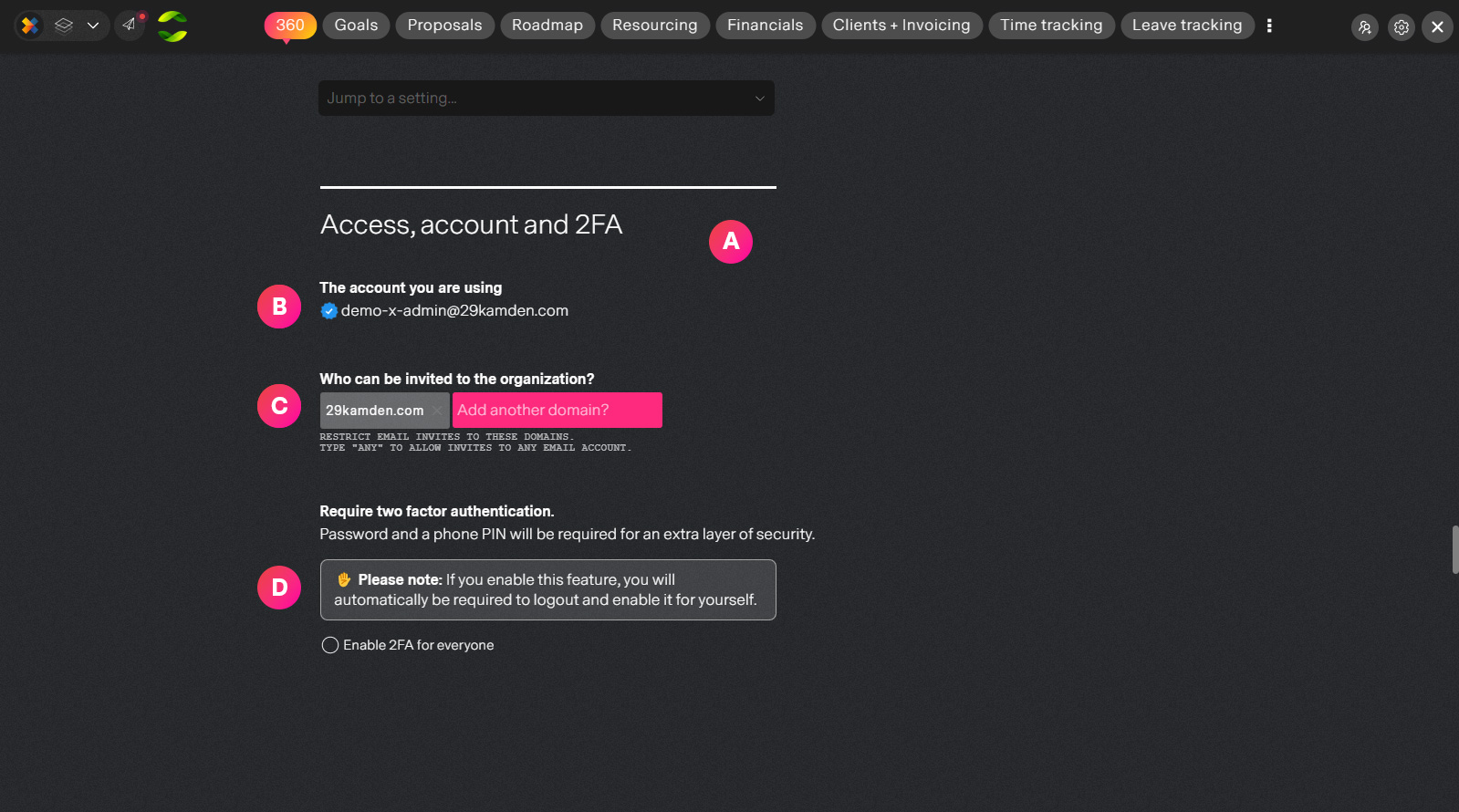
| Label | Feature | Description |
| A | Security and access section | These settings apply to people who are part of this Organization workspace. |
| B | Creator's account | Because missionX allows you to have multiple accounts and emails, if you do have multiple accounts you can decide which account to use for this workspace. This is important because you will not be able to send invites if your emails are not validated. This prevents fake company workspaces. |
| C | Approved email domains | Enter all email domains (the part after the @ in your email) that can be invited to your organization. Please make sure you are careful with this. |
| D | 2FA | As an extra layer of security, you can require that all members of your organization activate two-factor authentication (phone PIN required on login). This means that if you have 2FA enabled for your organization any member who has not signed in with a password AND phone PIN will not be able to access any organization data and workspaces. |
Program tags
Program tags are an efficient and very powerful way to organize or "cluster" projects into logical groups. Projects can simply select the program tag and missionX will refine and organize your reports based on tags.
Examples: Show me revenue for program "UK projects" or, show me actual costs for "Mary's program" or "Show me resources allocated to Digital Transformation 2026"
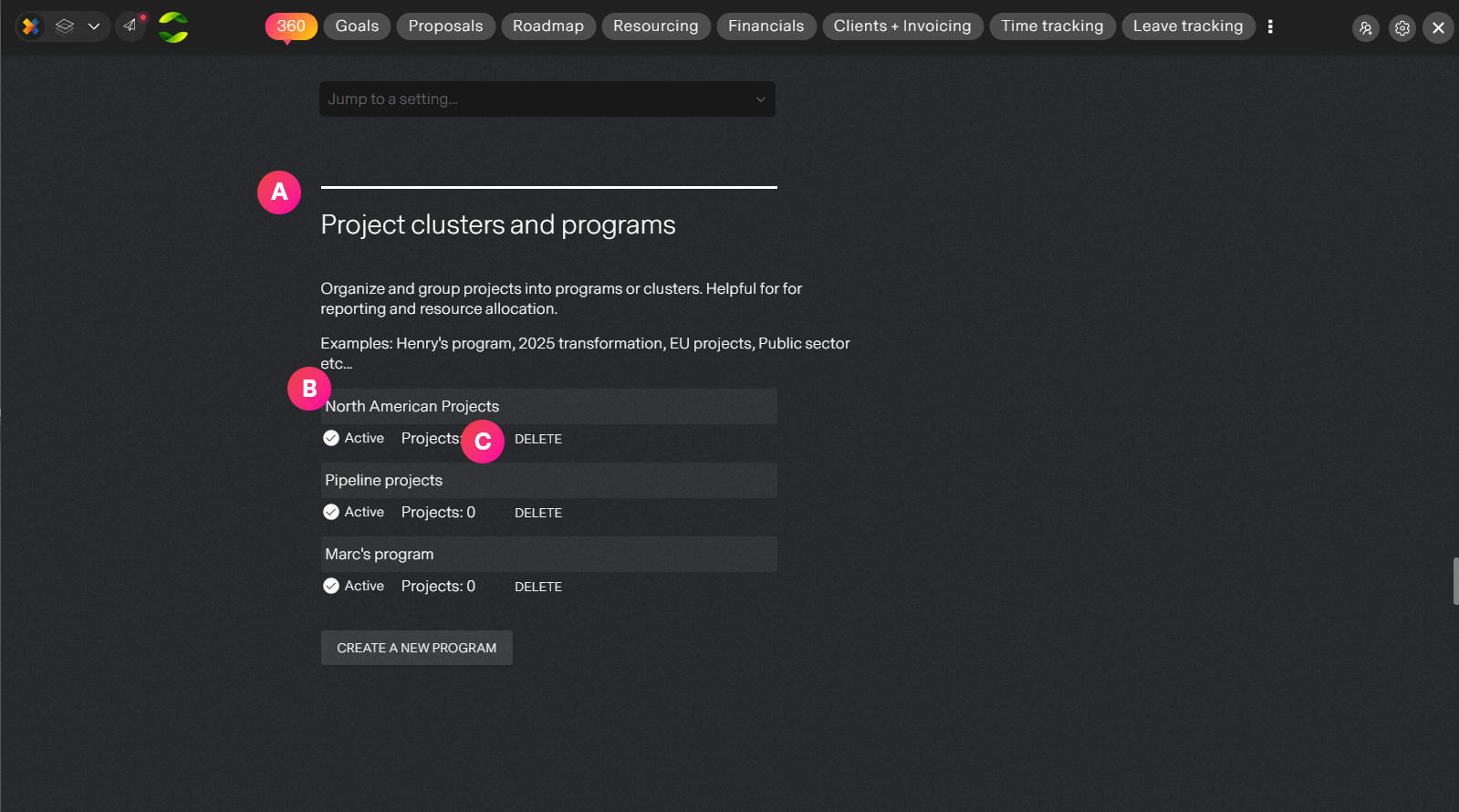
| Label | Feature | Description |
| A | Program tag section | Define tags to be used by projects to link their project to a program or cluster. |
| B | Program name | The title of your program. Keep it short and descriptive. |
| C | Tag controls | You can deactivate a tag meaning projects will not be able to use it until you reactivate it. This is useful when you setup a program ahead of time but do not want projects to start using it yet. You can also hard delete a tag and it can never be used again. |
Reporting tags and Templates
This is an extremly powerful yet simple way to structure your data for reporting. You can use tags on tasks, projects and timesheets. You can then slice and dice data in real-time using these tags.
Example: Show me how much time we spent on "Client non-billable" where "Client non billable" is your tag. This is something that needs some thought to decide how you want to use this.
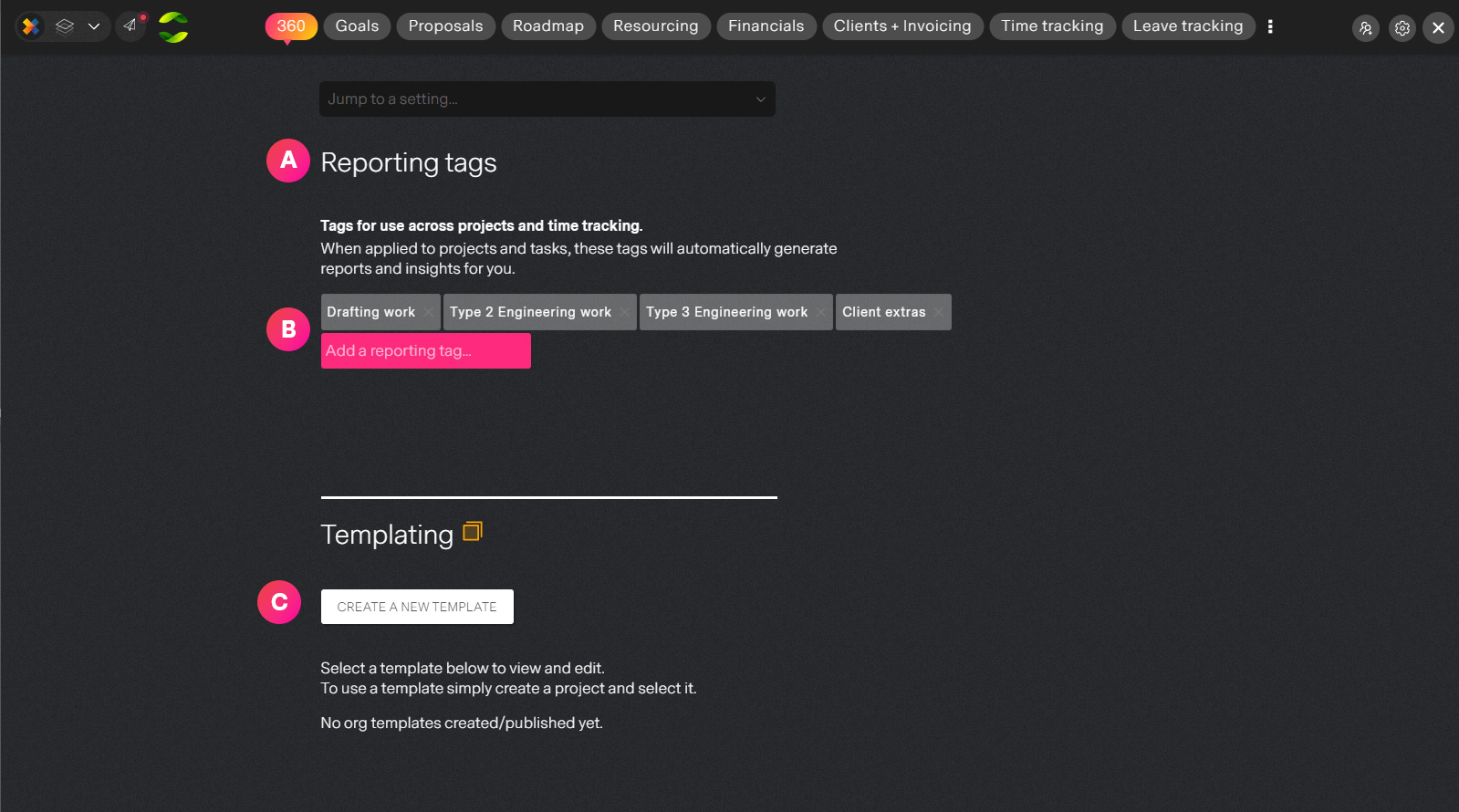
| Label | Feature | Description |
| A | Reporting tag section | Think about how you wish to structure data and what questions keep coming up that tags would allow you to answer quickly and easily. |
| B | Tags | Manage the tags by entering a tag name to create a new one or deleting existing ones. Be careful here. If you delete a tag it will not be available anywhere in the system, including for reporting. |
| C | Templating | This simply shows you all templates being used in your organization. Useful if the template owner is no longer with the company or for auditing purposes. |
Invoice info
The default information to display on invoices.
You can also see Integrations for setting up Stripe payments to invoices sent from missionX.
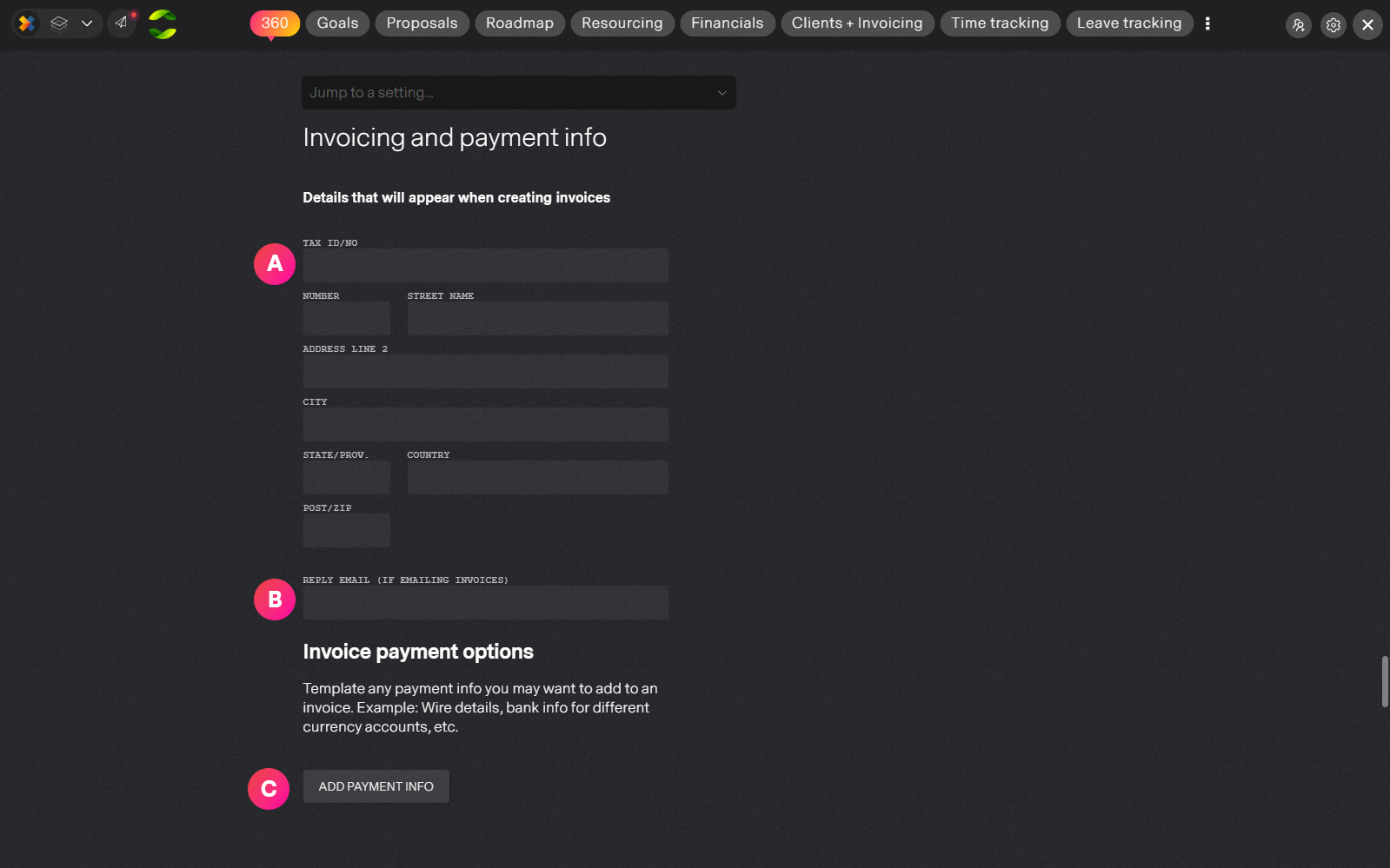
| Label | Feature | Description |
| A | Tax ID and address | Information that will appear on invoices |
| B | Reply email | If you use missionX to send invoices, this will appear as your reply to email and should be accessible by the person or department handling invoices. |
| C | Template payment info | This is useful for applying information on the invoice like payment information or thank you note. A common use-case is bank details across different accounts, currencies and regions. |
missionX account billing
Manage your payment method for this organization. Secure credit card payments are managed by Stripe.
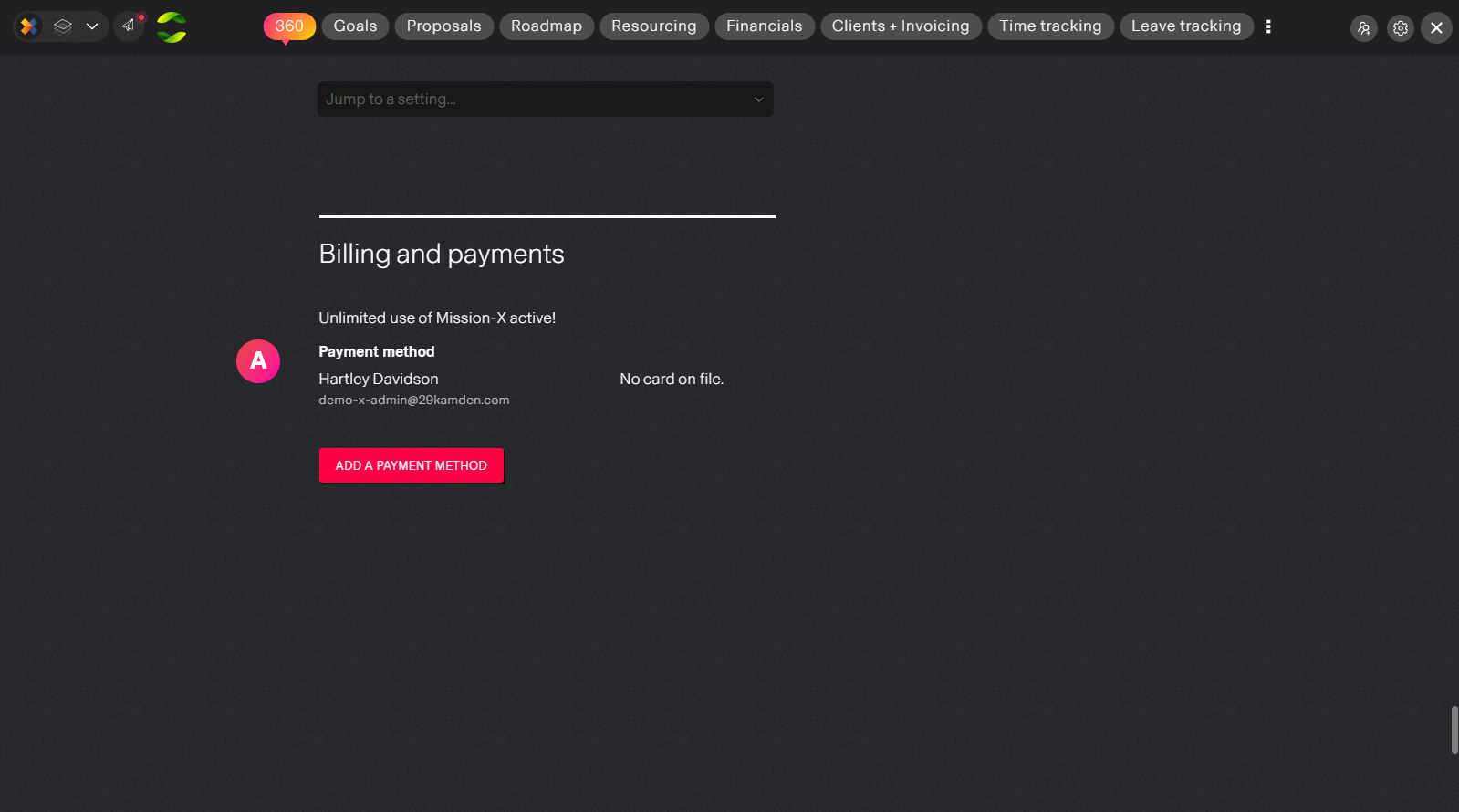
| Label | Feature | Description |
| A | Payment method | Manage payment methods for your missionX Unlimited subscription. |
Delete an organization workspace
Hopefully this is because you made a mistake and created a new one but if you have issues please let us make it right. help@missionx.ai
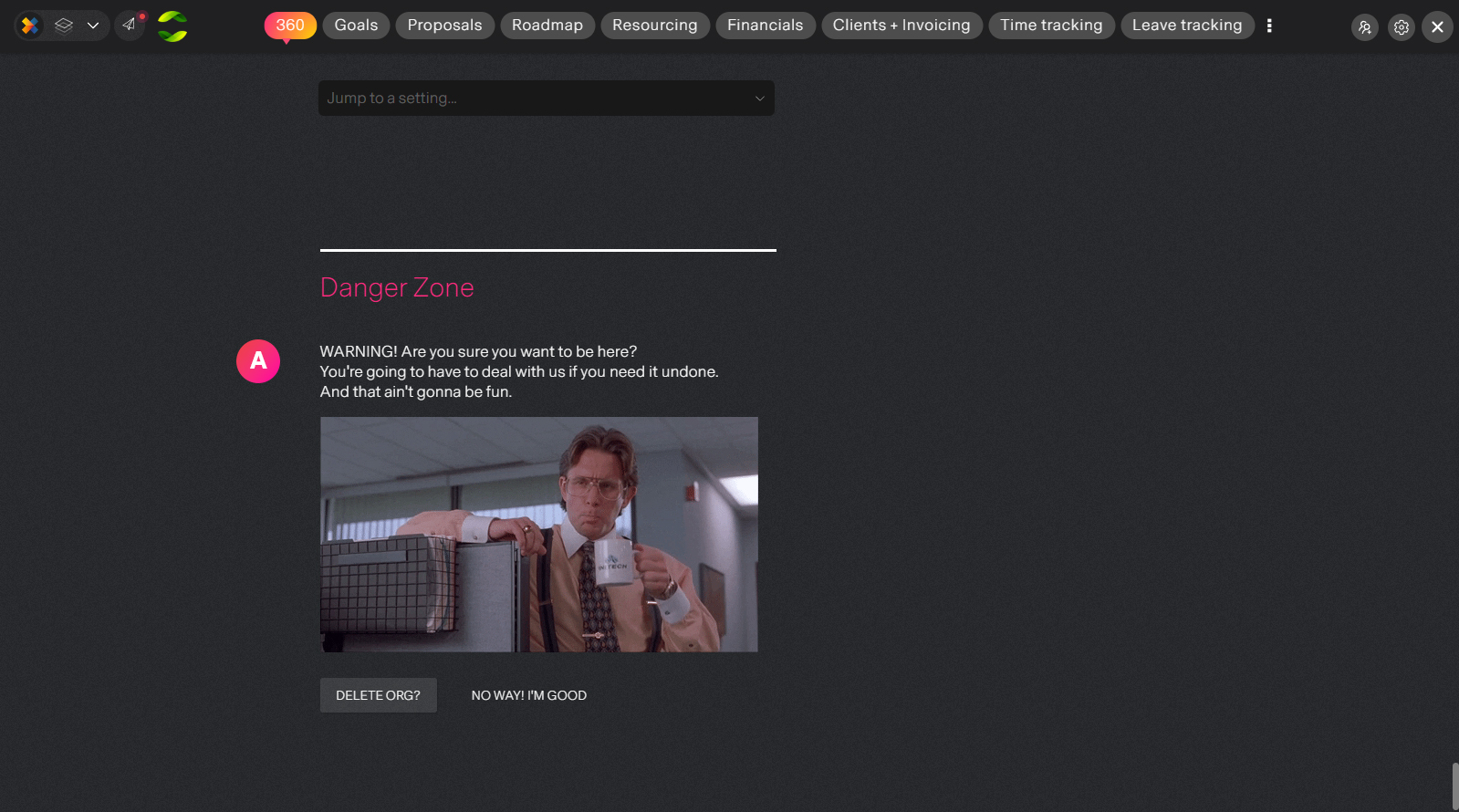
| Label | Feature | Description |
| A | Delete workspace | You can delete your Organization. This is no joke and no going back unless you contact us. |
Next steps
Although missionX has a lot of settings you can still be up and running, fully featured, in less than an hour.
Learn more about managing and inviting people in your organization.