
 Launch
People HR on missionX
Manage people's permissions, roles and profile including leave entitlements and balances, from one convenient location.

The People HR screen
From here you can add people, find people and adjust people's permissions and roles.
You can directly edit certain properties directly for each row, or by selecting a person you can open the Person Profile panel for a complete set of properties for each organization member.
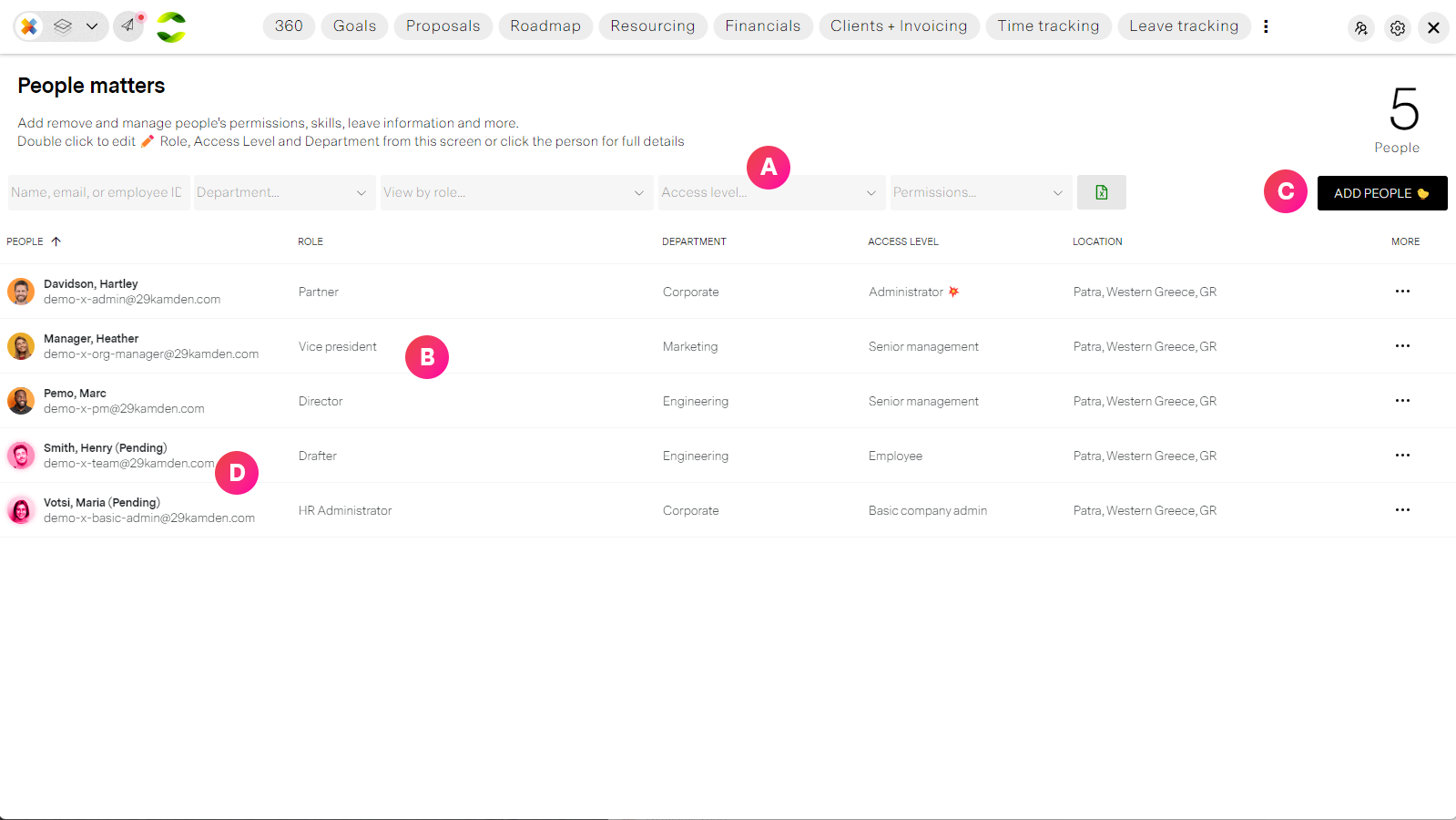
| Label | Feature | Description |
| A | Filtering and search | Analyze and find people in your organization by name, employee ID, role, department, Workspace access and unique permissions. You can even export your date to spreadsheets if you wish. |
| B | Person row | Each organization member will be listed here. You can click on a row to view their details in the Person Profile panel (see below) or directly edit certain properties like Role, Department and Workspace Access directly. One thing to note is that location is determined by the physical location of the person Please note: missionX supports up to 50,000 members per workspace. If you need more please contact us. |
| C | Add people | Opens the add people wizard where you can invite people to join your organization and set access level. |
| D | Invited members | You can invite people to your organization but they have to accept the email invite before they can be added to roles and have access to things like company timesheets and projects. People who have not accepted yet are shown in red. |
Inviting people to your organization
There are two ways in which someone can become part of your organization: You can invite them directly from this screen or from a project. People who are added to projects will automatically be added to your organization with minimal permissions that you can change at a later time.
For medium size companies it will be easier to invite senior management (Directors, VPs, etc) and project managers that can then invite their teams to projects. For large organizations, you're going to want to integrate your company's directory. We can help with that just contact us.
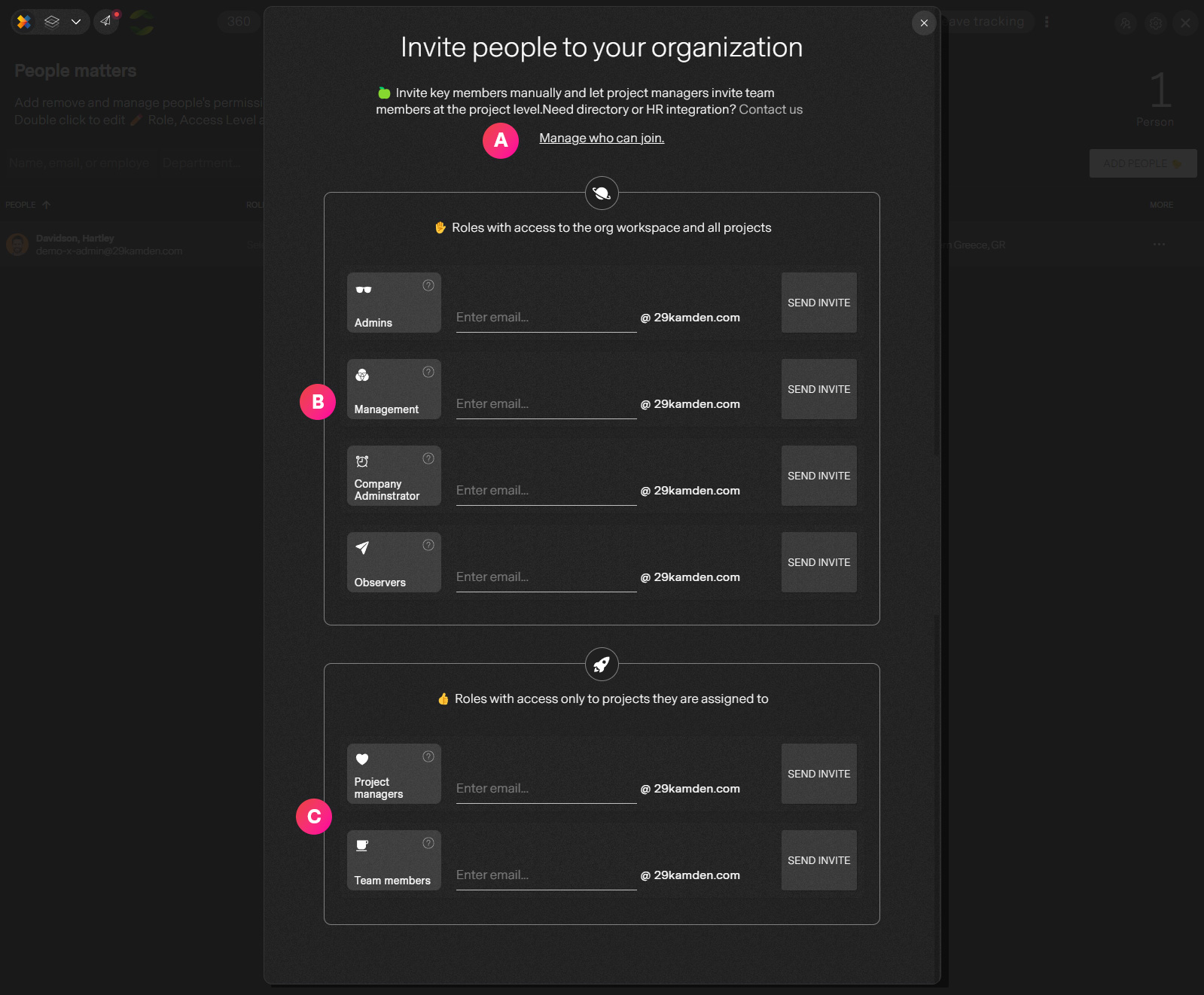
| Label | Feature | Description |
| A | Who can be invited to the organization | missionX uses email to validate and authenticate users. Once the workspace creator has been validated, they can then invite others and set which email addresses (domains) can be sent. In most cases your company's email domain will be enough (mycompany.com). |
Access to the organization workspace
The organization workspace grants special privileges to people with this elevated access.
Workspace access means you are a senior management, overseeing projects and departments or an organization admin like HR, accounting or timekeeping with limited scope to your enhanced permissions.
| Label | Feature | Description |
| B | Workspace access | Inviting users from this section will grant access to your Organization's workspace. Workspace access is important for viewing aggregate reports and administering things like timesheets and expenses. There are four (4) types of Organization workspace access: Admins Admins have access to everything and can modify organization settings. Be careful who you grant this level of access to. We recommend giving this level to owners, high-level technical executives (CTO, CIO, PMO) or a very senior IT manager. Management (Senior managers) These are your executive team, Vice presidents, Directors, Program managers and other officers of the company tha need access to the Big Picture reports and insights the Organization wokspace provides. It is recommended that you further refine access using Accessible departments. For example the CIO or Vice President of a company will need to see everything across the organization but a Director of Design could be limited to the Design Department. It all depends on your policies. Company administrators This is a special access level for people who play a specific role managing the business. The role starts out with the most basic access - not able to see reports and analytics but can be granted permissions as needed. For company admins, it may be HR people or general admins. Combined with specific permissions they can approve timesheets, leaves, expenses, clients and even invoices. Observers This is a very rare case but being missionX, "we do that too". There may be people you want to grant access to view and analyze organization reports and data but not allow editing, creating or viewing projects, just viewing reports. Some use-cases for this are: board members, potential investors, auditors or *gulp* regulators. |
| C | Project access | Project managers People with this access level cannot access the Organization workspace but can create and oversee projects for the organization (if you have it setup this way in the config panel) Project and portfolio managers do not need access to the Org workspace because the Project manager's workspace provides specialized tools for managing one or 100 projects. Team members Team members are the backbone of every organization. Team members do not have access to the Organization workspace but can be invited to projects and fill roles for those projects. All people including team members can access projects they are working on, timesheets, leaves and expenses for the organization from Individual workspaces |
Person's profile
Manage each person in the organization individually.
Adjust basic HR properties here like start or end dates, skills, permissions and even remove the person from the organization.
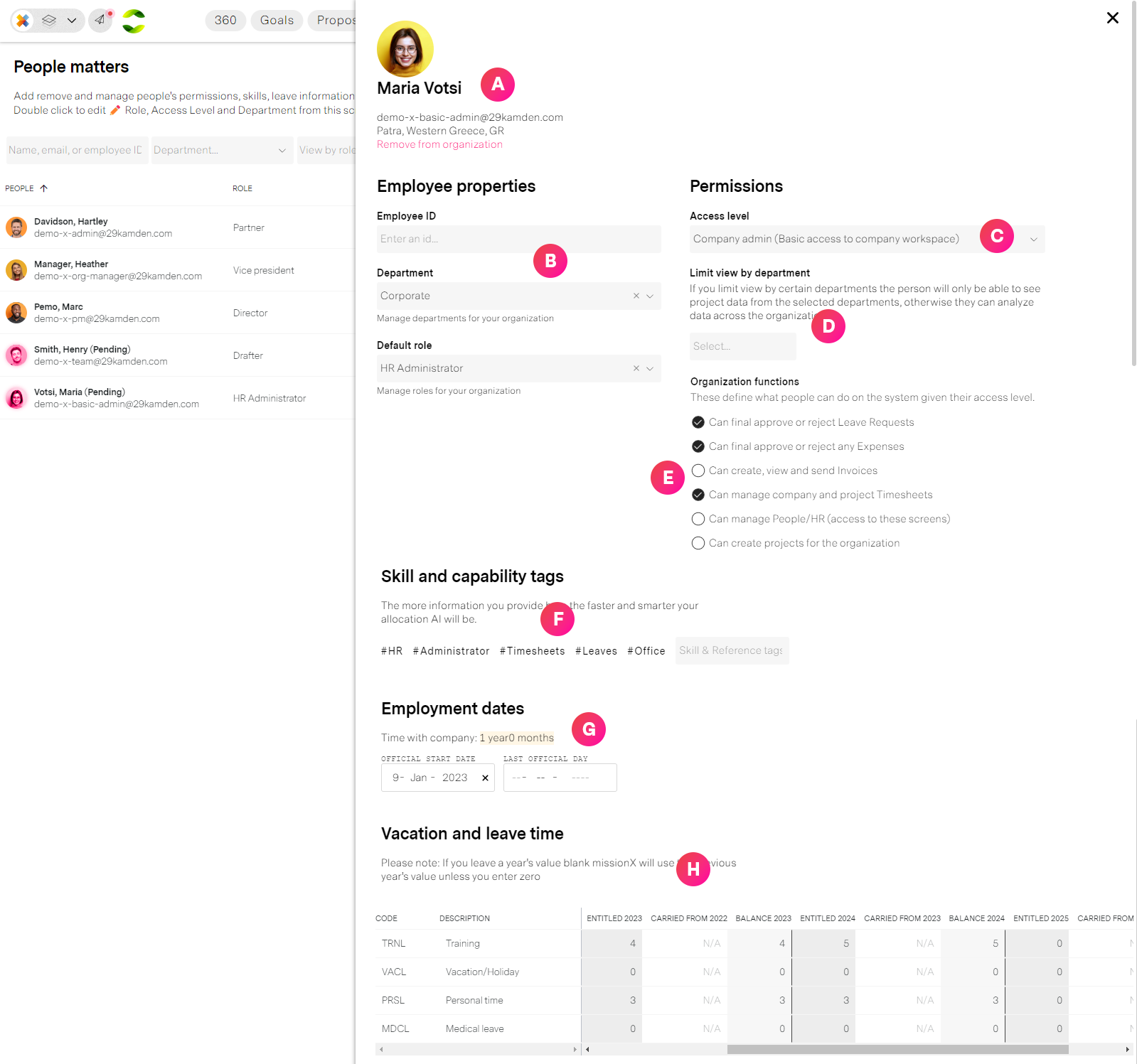
| Label | Feature | Description |
| A | Person | Person's personal and company details. From this section you can delete a person from the Organization, removing all access to organization projects and data. |
| B | Employee properties | Set things like Employee ID, Department and role. |
| C | Person's access level | This is the access level, originally set when the person was invited to the organization. (Workspace and Project access) |
| D | Accessible department | A very powerful method for limiting access to projects and reports by a person's department. It can be one or more departments. For example you may have a VP of Sales may have access to the Marketing and Sales department. Or a Director of Engineering can only access the Engineering dept. Very senior people like executives, should have access to everything across the organization so this should not be applied. Please note: This does not apply to Workspace admins. They can do and see anything in the organization. |
| E | Enhanced permissions |
Manage what people can do within your organization. This is very powerful because it allows you to refine and combine permissions and access levels to get exactly what you need from individuals. This will not be needed for most members, but very useful for defining company administrators. Please note: This does not apply to Workspace admins. They can do and see anything in the organization. Can final approve or reject leaves Will be able to final approve or reject leave requests across the organization along with gaining access to leave reports. Can final approve or reject expenses Will be able to final approve or reject expenses across all projects with access to expense reports but not financials. Besides approving they can update the status of an expense to paid. Can create, view and send invoices An extremely powerful permission in the organization and must be assigned manually to all non-admin members. (Workspace Admins can do anything). guide/clients-invoicing/ Members with this permission can create and manage clients, create PO# (Purchase order numbers ) Can manage company and project timesheets A very important role for consulting type companies that need to track utilization and profitability. People with this permission can approve, reject or even create timesheet and entries for people. Can manage People/HR This permission allows you to access the PeopleHR screen and the profiles of people. They can cahnge security permissions, access levels and even remove people from the organization. Can create projects for the organization Workspace Admins, and Senior management access levels can create projects for the organization no matter what. Project managers can also create projects for the organization (if your default settings allow project managers to create projects) You can restrict or expand who can create projects by combining this permission with "Who can create projects" in your Organization's config panel. |
| F | Skill tags | By tagging people to unique skills you are making resource allocation more precise and your AI even smarter. This helps when people are searching for people with specific skills or using AI to assign people to project roles. |
| G | Employment dates | When a person will be starting or ending their involvment with the organization. Important: If start or end date are specified, this will determin if a person can be utilized or assigned to a project. If the project role dates do not overlap the start and end dates they will not be able to join. Important: If a person has an end date and it passes this will not affect their membershipt to your organization... you must manually remove someone (A from above) from the organization |
| H | Vacation and leave time | If you have set default leave entitlements they will appear here and can then be overridden for each individual. This will also show you past and current entitlements, leave balances and any carryover balances. |
Pheeeew! Having options is great
Most of these apply for Enterprise customers who need more control to deal with many departments and thousands of people but it's good to have available as you scale and grow.
Now let's get to the main show: Projects in missionX