
 Launch
Create and submit timesheets
Remember, timesheets are divided into company timesheets and project timesheets.
Anyone can submit a Company timesheet but only people with active roles on a project can submit Project timesheets.
Access your timesheets
Open your time tracking mini-workspace from your Personal workspace. To access your personal workspace from anywhere in the application simply click the X logo on the top left of the application.

Your timesheet workspace
Manage all your timesheets across all your projects and even for multiple organizations. Submit all weekly timesheets at once or individually.
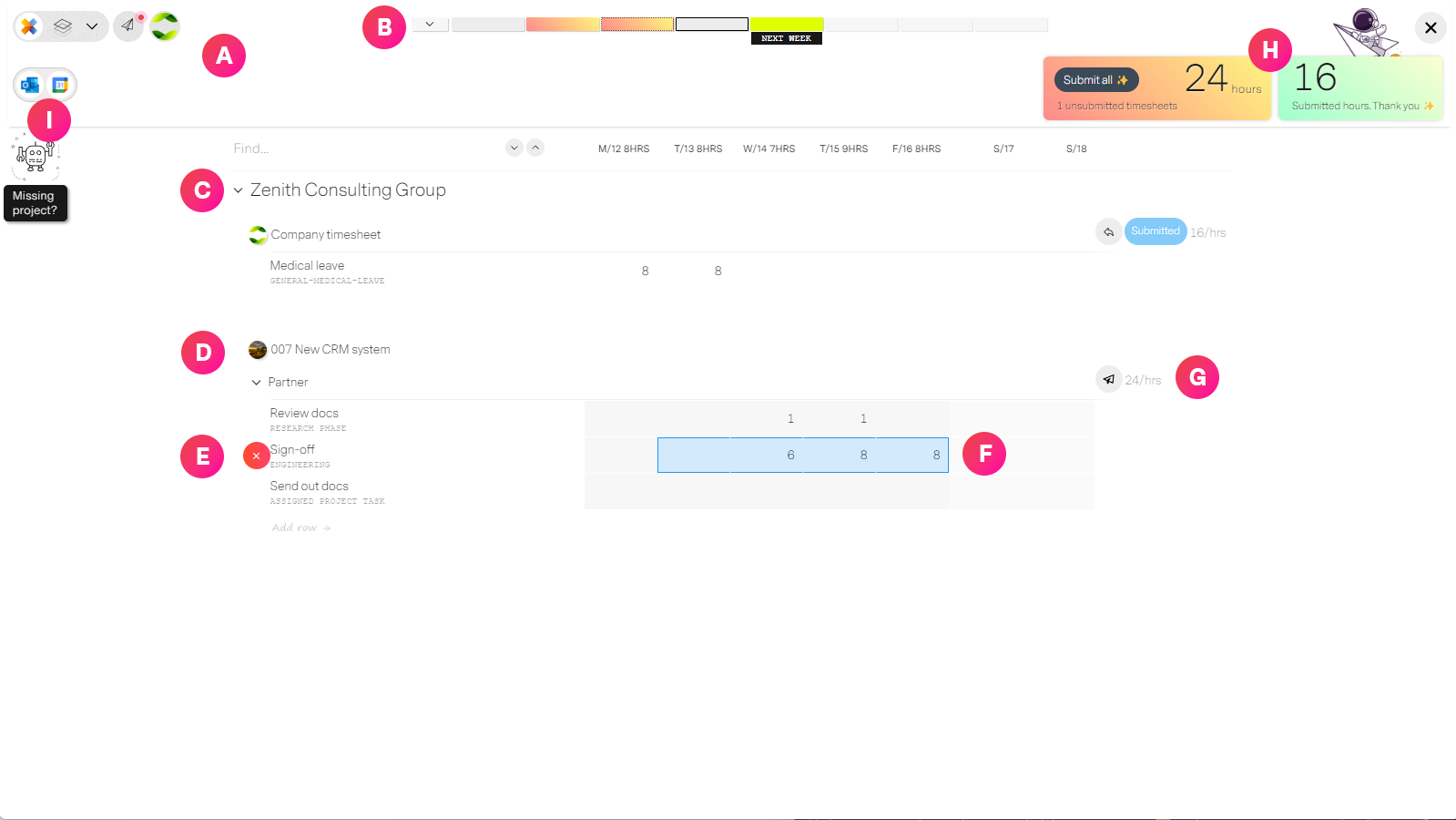
| Label | Feature | Description |
| A | Smarter timesheets | Timesheets are organized by weeks, organizations and project roles. missionX automatically prepares the timesheets you are eligible for depending on the selected week, the organizations you belong to, and the projects you are active on. |
| B | Weekly timeline | Navigate past and future weeks for submitting timesheets. All timesheets are on a weekly basis and the selected week will determin which projects you are eligble to submit timesheets for. |
| C | The Organization | Timesheets are grouped by the Organization. It is possible to be part of multiple organizations but for most people it will be the compay they work for. Under the organization, you have a standard Company timesheet and varying project timesheets depending on your project allocations. |
| D | Project timesheet | Project timesheets are linked to an active role on the project. If you are on the project but not assigned a role you will not be able to submit a project timesheet. Example time constrained role: You may have a role as a Designer on a project for the first 2 weeks. You would then only see timesheets for the first two weeks of the project. To change this the project manager would have to extend the role. Example multiple project roles: You could have two roles on a project. For example you maybe acting as an Account specialist and as a Senioer manager. You would then see two timesheets if the roles overlap. This is extremely useful for time and material projects where you might have multiple roles with different bill rates. |
| E | Timesheet entries | You can add and delete rows for every entry you wish to capture on your unsubmitted timesheet. To add a new row, select the Add row link at the bottom of the Project or Company timesheet. You can either select from a list of project tasks or enter something completely separate. To delete an entry simply place your mouse over the title and a red x icon will appear. This will allow you to delete the entry. |
| F | Adding hours | To add hours select one or more cells and enter the number of hours. To enter multiple days or even rows at once, simply click and drag over the cells (days/rows) you wish to enter and press the number of hours from your keyboard. All active cells will automatically be poplulated. |
| G | Submit individual timesheets | Each timesheet has its own approval process so many times you may need to submit, open, re-submit timesheets individually. You can do this from the timesheet controls located top right of each timesheet. In the image above we see a submitted Company timesheet but a pending Project timesheet. |
| H | Submit all timesheets | A summary of all submitted and unsubmitted hours for the week across company and project timesheets. The unsubmitted details card in orange, can also be clicked to submit all unsubmitted timesheets at once. |
| I | Calendar import | You can import calendar events from Outlook and Google (coming soon) calendars. Once you login to your calendar, missionX will import events for the active week (See B in the image above). You can then drag and drop events on to a Project timesheet. This will create a new entry with the time and date filled in for you. |
Submitting timesheets for other people
Although not ideal, there are real-world scenarios that an organization admin will need to submit timesheets for other people.
Common scenarios include: Poeple who are sick or away and third party contractors who just won't bother doing it.
Requierments
There are only three requierments for submitting or altering timesheets for other people.
- The person submitting the timesheet must have the enhanced permission: Can manage company and project timesheets
- The person for whom the timesheet is being submitted must be added to the organization
- You must submit timesheets from the Time tracking tab in Organization workspace.
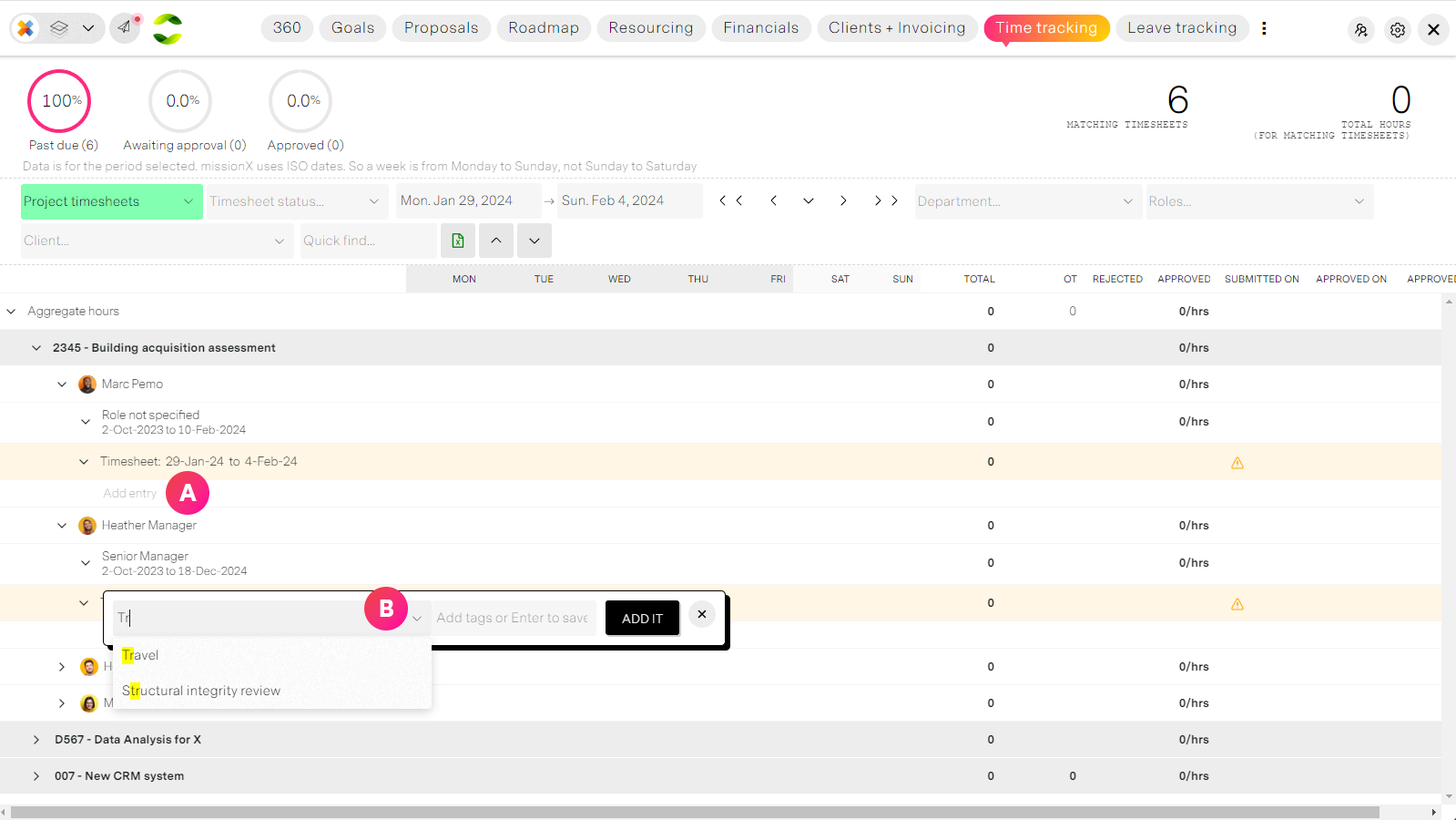
| Label | Feature | Description |
| A | Add entry | You can add timesheet entries for anyone in the Organization from the Time Tracking tab. You can enter Company time for all people in your Organization but you can only enter time if someone has been allocated to a project role. |
| B | Create entries | Select a project task, timesheet code or enter your ownl label for the new entry. This way you can add hours for other people and have that automatically update actuals and invoicing. |
Planned enhancements
Although fast, simple and accurate timesheets are being enhanced with the following:
- Mobile time tracking and approvals
- Pinning repetative tasks each week
- Complete Google and Apple calendar integrations
- Re-introduce prefilled timesheets based on tasks
Summary and next steps
Once you grasp the concept of multiple, independent timesheets across projects and companies, time tracking becomes a breeze.
Next we move on to Approving timesheets