
 Launch
Create project wizard
An intelligent way to quickly spin up any type of project: work, personal, billable and non-billable. You can even personalize it by selecting a theme.
How to create a project
We are going to create one of the most sophisticated project types in missionX: a fixed-bid, client billable project for one of our biggest customers. Every other project is a breeze so let's go through the steps.
Remember all these settings can be changed at anytime after your project is created.
- Creating your project
- Name the project
- Tag your project
- Budget details
- Access to your project
- Project type
- Theme and done
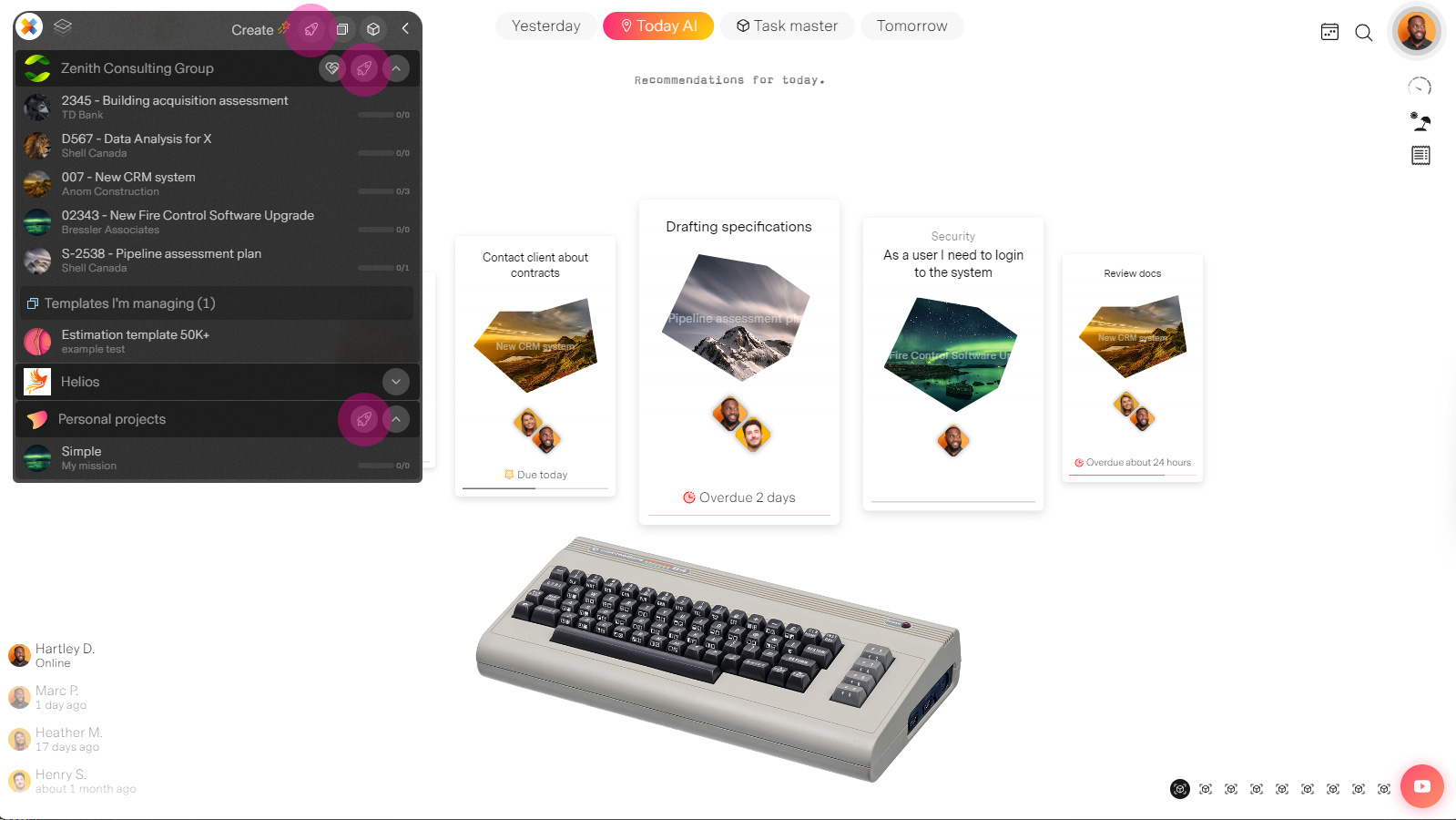
Creating your project
From anywhere in the app just open your control and look for the Rocket icons to launch the wizard. You can kick-off a personal project or organization project directly by selecting the contextual Rocket icons
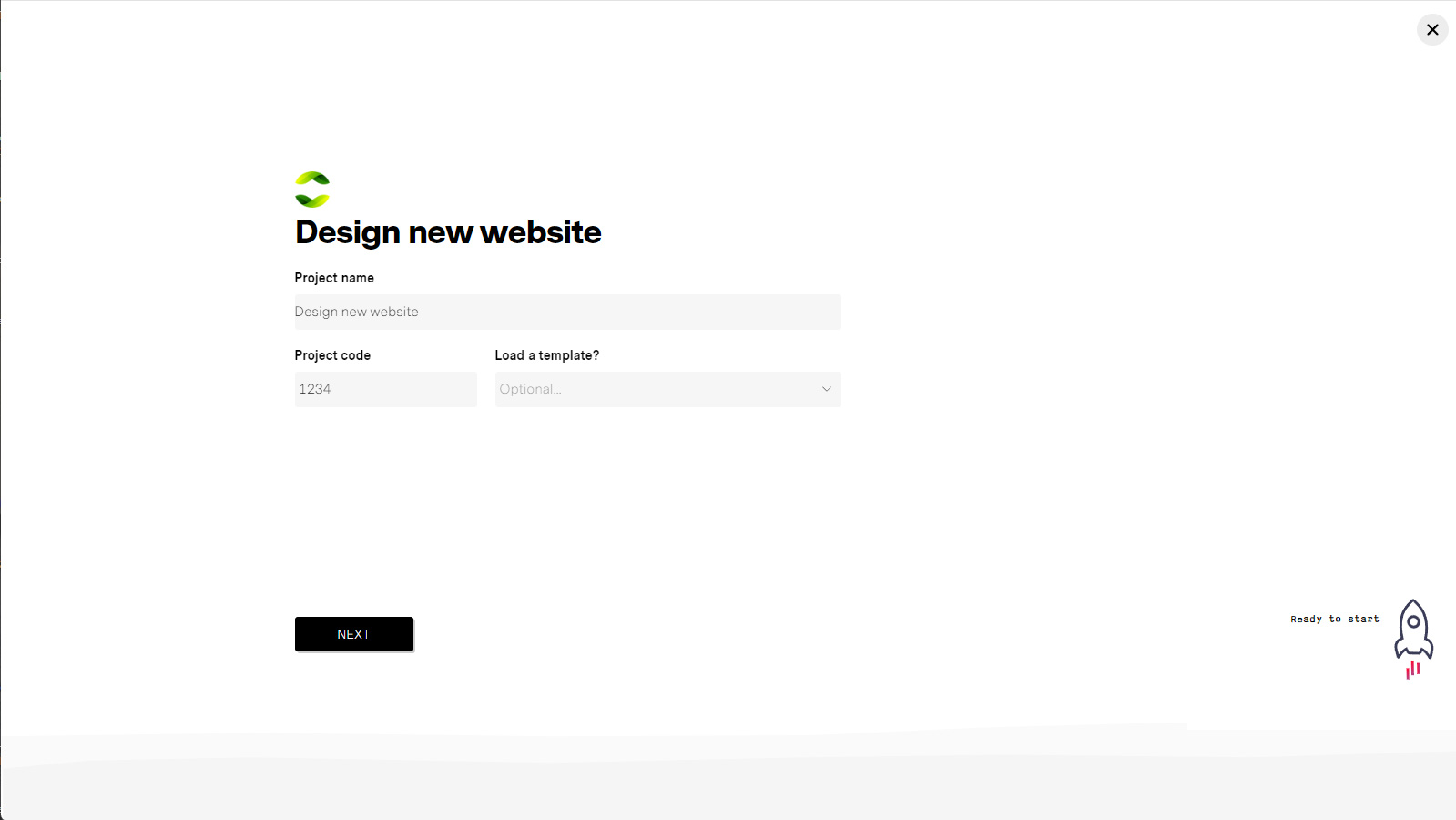
Name the project
Enter a project name, an optional project code and if you wish, select a template to make the process even faster.
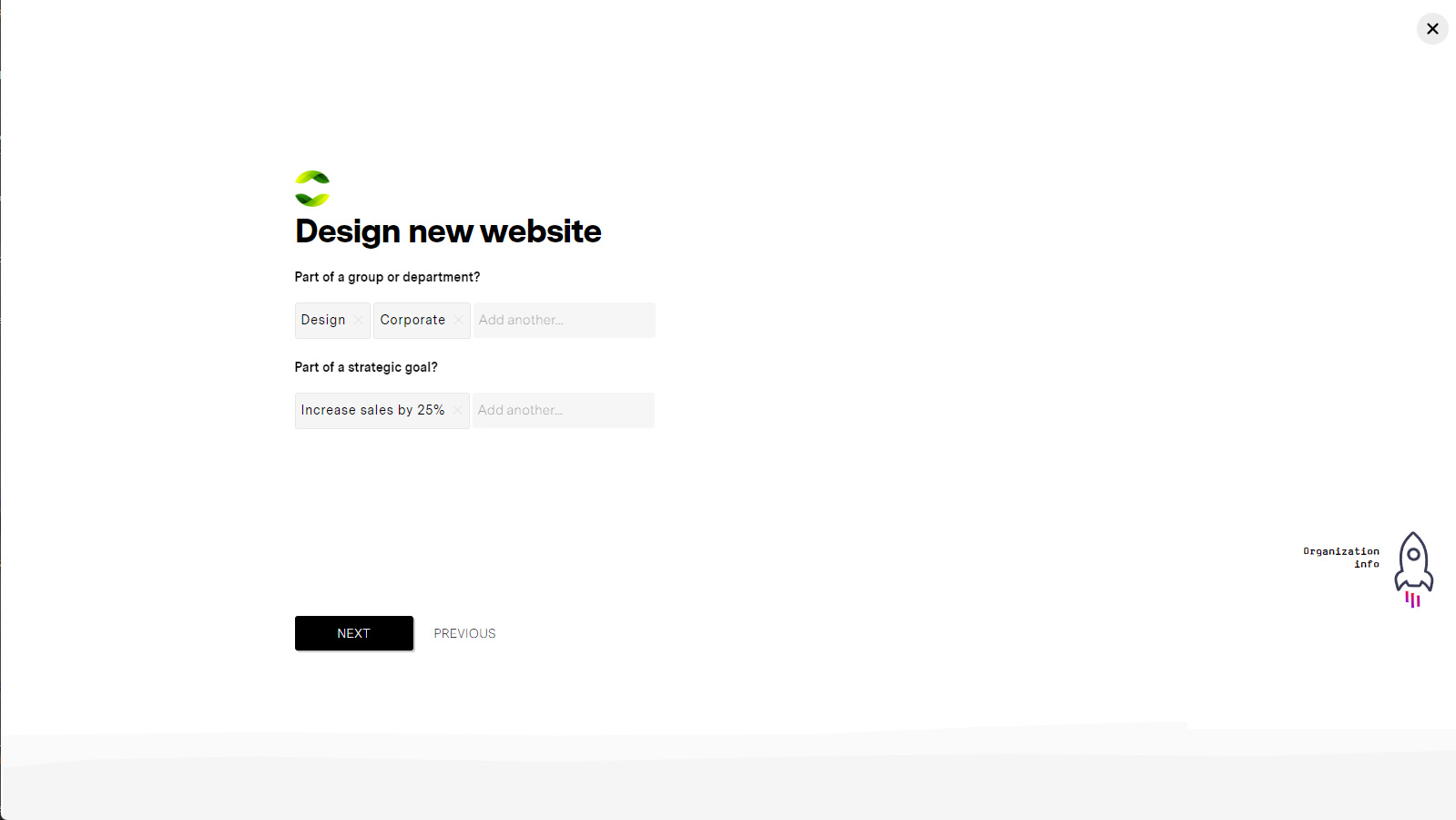
Tag your project
To automate reporting and structure your data, you can optionally tag your project with department tags, strategic goals, and custom reporting tags.
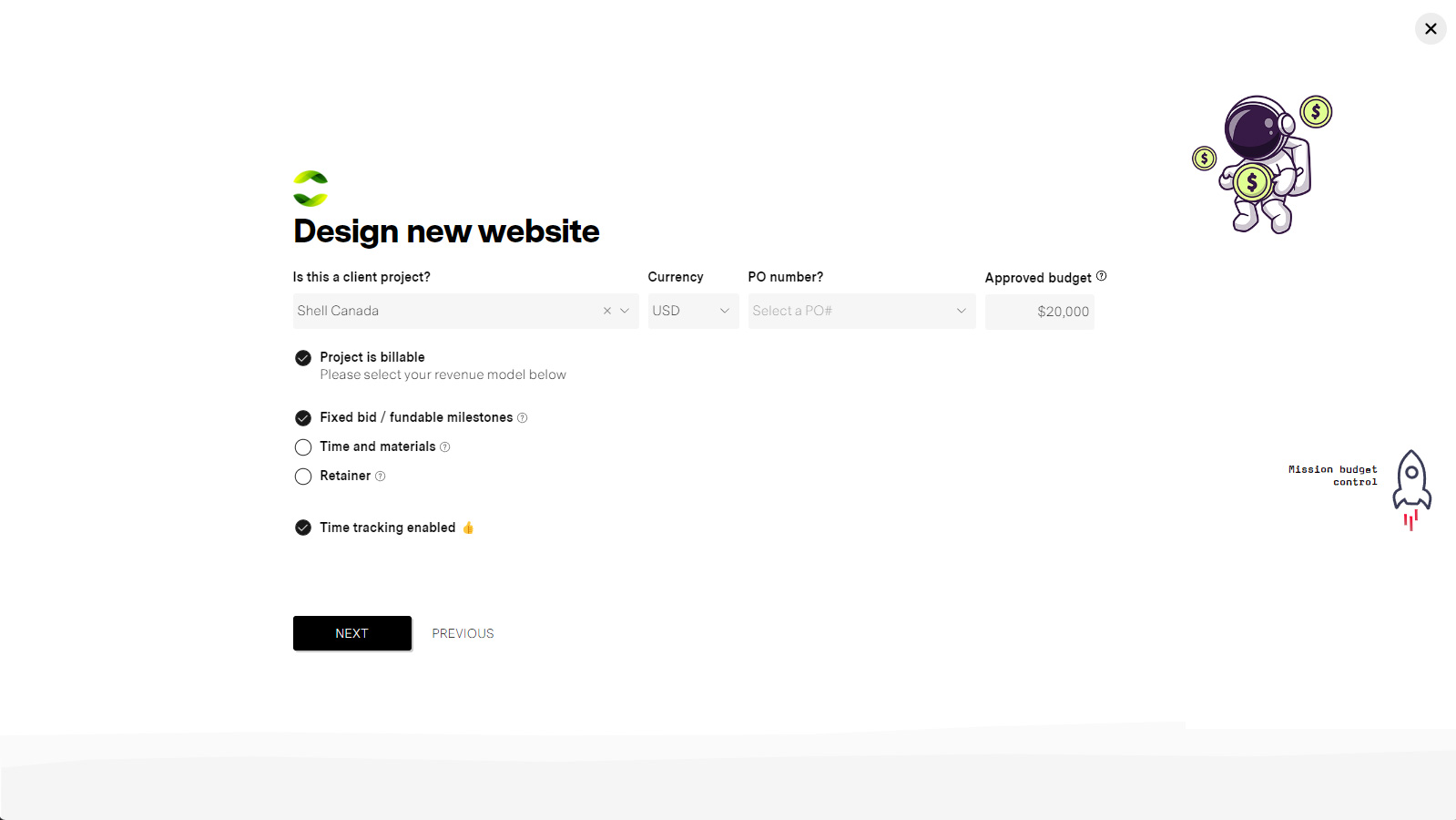
Budget details
If we select a client for this project, than the wizard will give us more options allowing us to define if the project is billable/not billable the revenue model (fixed-bid, time and material or retainer). You can also denote if you will be tracking time using timesheets on this project. Approved budget represents a baseline which is either your bid for the project, what has been authorized if the project is internal or what you expect to spend.
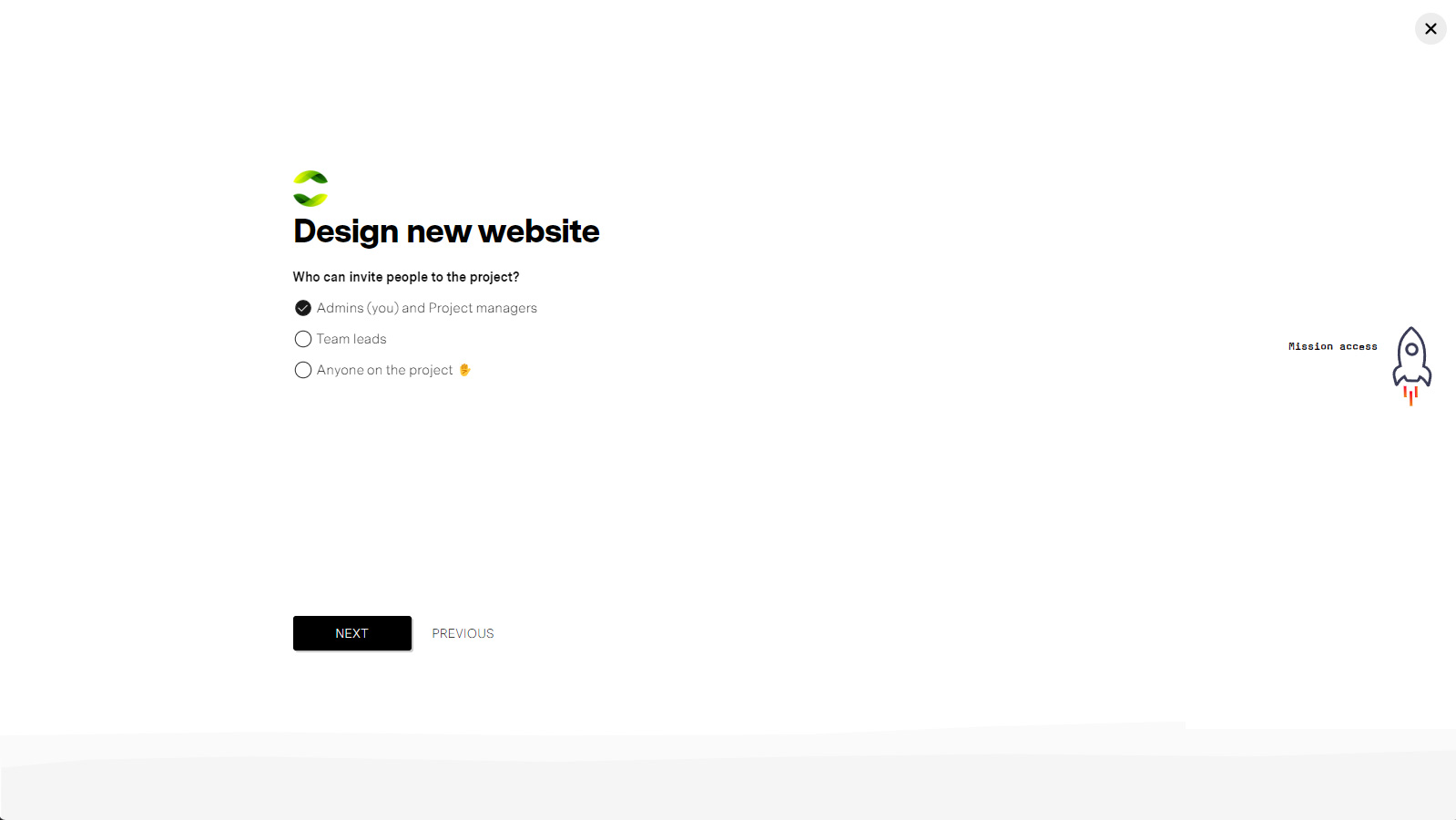
Access to your project
Adding team members on a project can be restricted by who is doing the inviting, and who they can invite. The safest is admins abd the most flexible is anyone.
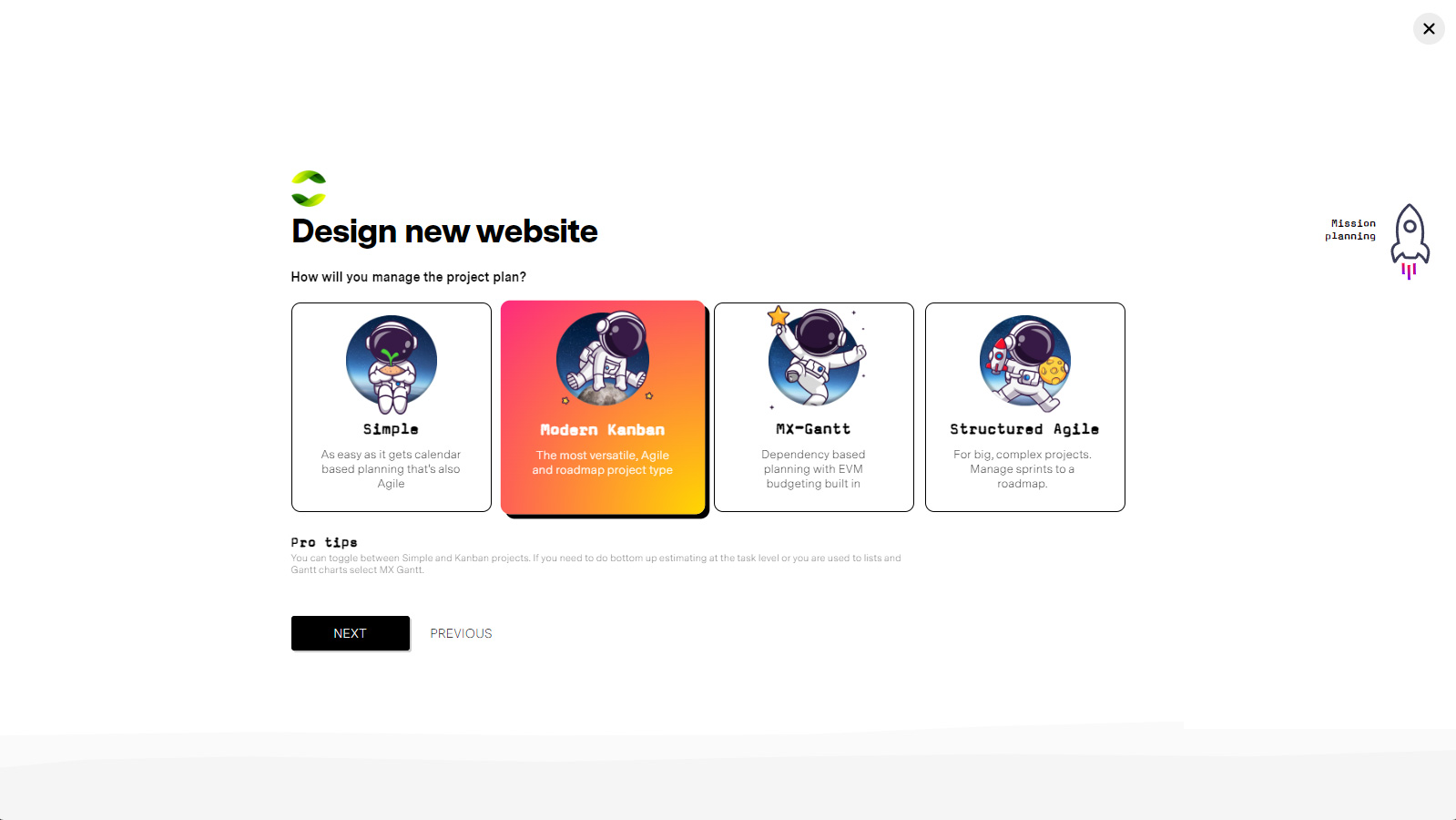
Project type
The hardest part of missionX is deciding what project type to use. We recommend Simple and Kanban for most projects as they allow you to bounce between Gantt and Kanban while still being easy and Agile. For massive projects use Structured Agile and if you are used to dependency based planning MX-Gantt.
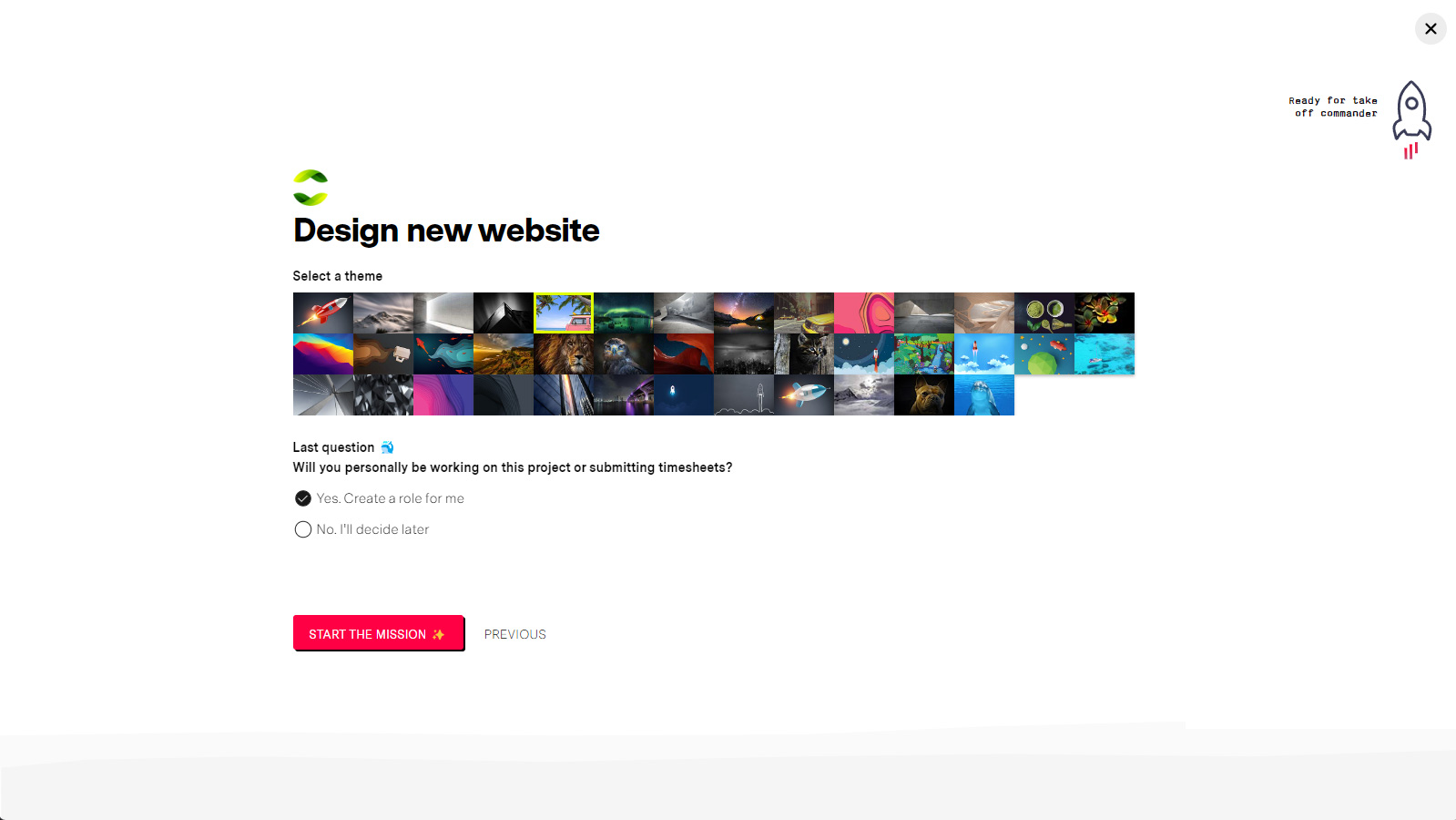
Theme and done
Make it beautiful, make it unique. Select a theme to differentiat your project. You can also decide if you will be actively working on the project by creating a role for yourself. Roles allow you to track budget and time for people.
That was easy
Now you can explore the different project types and how they work in more detail.