
 Launch
Project permissions and access
Access to projects can be as flexible or restricted as you wish and is either given by inviting someone to the project, or if a person has Organization access as a Senior manager or Admin.
Access to project features such as budgeting, timesheets and task creation is controlled by the team member's permission level as described below.

Project Permissions
There are five permission levels that can be assigned to project members.
An Organization Admin or Senior manager can access a project as an observer at any time. They can also add themeselves to the project without a project managers permission. Bosses gonna boss. The only limiting factor for Senior managers of an organization is if thet
| Permission level | Description | |
| Admin | This is the project owner, they can do and see anything on the project | |
| Project manager | The project manager can do almost anything on the project except delete the project. Both Admins and project managers have access to all features in the project workspace but also the PM workspace. Project managers and Admins approve leaves, timesheets adn expenses for the project | |
| Team lead | Team leads do not have access to sensitive information like budgets and cannot change the project timeline but in Simple and Kanban projects they can create and assign tasks to be worked on. | |
| Team member | Team members can only work on tasks they are assigned to and do not have access to any sensitive information. | |
| Observer | An observer can access the project and view the project plan but cannot change anything. They do not have access to sensitive information like budgets. The observer role is perfect for clients or customers who may be required to monitor progress or approve and sign off on tasks or documents. |
Inviting people
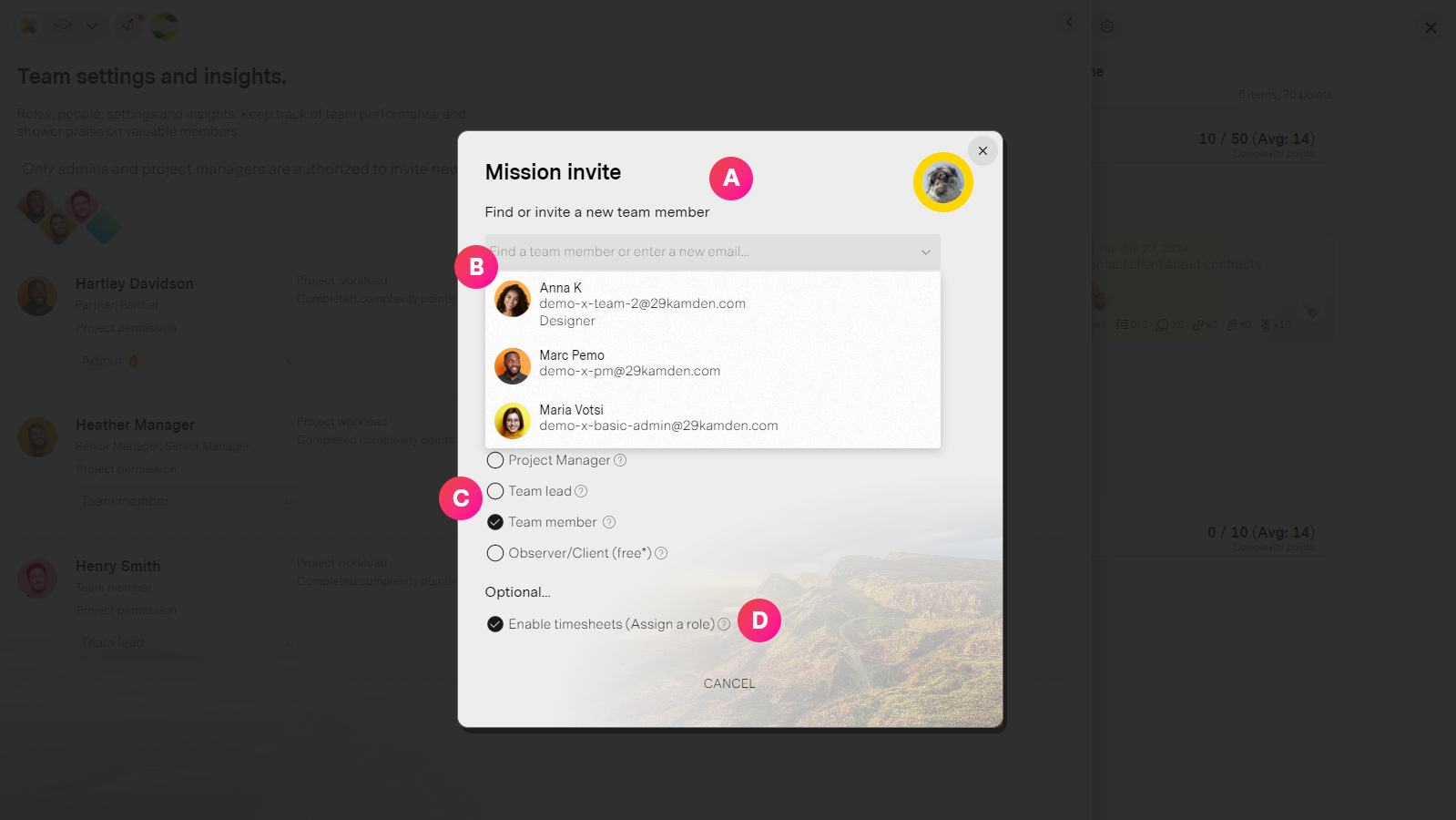
To gain access to a project a person must be invited by an authorized person already on the project. Usually an Admin or Project manager but this can be changed in project settings to allow anyone to invite.
| Label | Feature | Description |
| A | Invite panel | If a person is authorized to invite others to a project they can access the invite wizard from the project workspace wherever you see the team's profile pictures or the team panel (below). |
| B | Invite someone | You can select a person from your organization in the dropdown, or enter an email address directly. Please note that emails must match authorized domains from your project settings. For example if the organization email domain is @missionx.ai then only people with @missionx.ai are allowed to join the project. Exception: A Project manager or Admin can invite people who do not match the authorized email domains. The new email domain will then be added to the authorized list. This is useful when working with consultants or clients. It is best to limit who can invite others to the Admin or Project manager for sensitive projects. |
| C | Permission level | Select the permission level this person will enjoy on the project 🍹 |
| D | Project role | Decide if you want to assign a role to a person on the project. Project roles are critical if a person want's to submit timesheets and if you want to track effort, billable hours or simply an internal cost. Some people for example observers and client approvers probably do not need a role but everyone who is actively working on the project should have one. |
Team panal
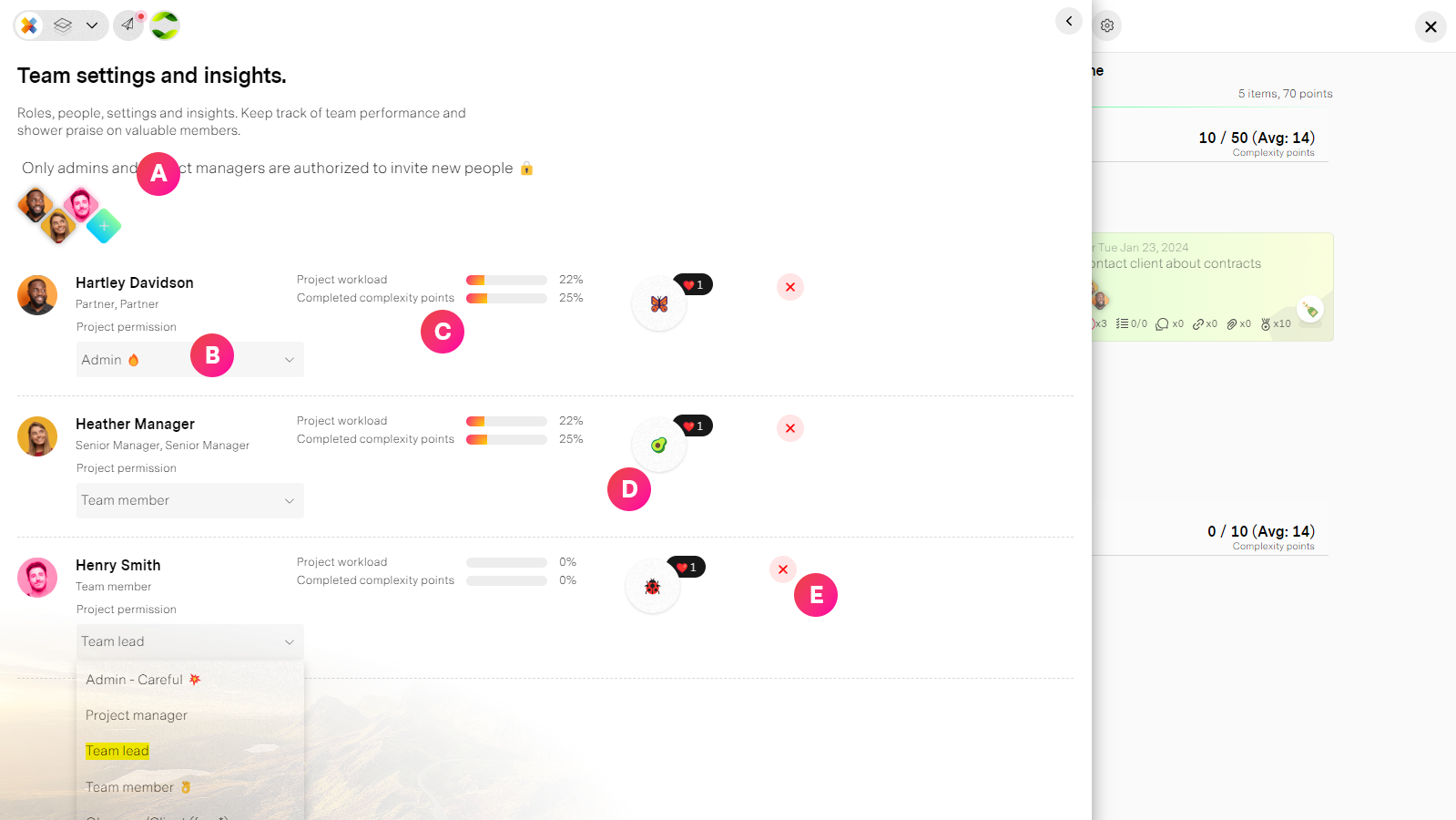
Oversee the project team from your Project workspace's Team panel
| Label | Feature | Description |
| A | Team profile pictures | If a person has permission, they can add and remove people by hovering over the images. |
| B | Permission dropdown | If a person is an Admin or projetc manager, they can change a team member's permission level. There must always be at least one Admin on a project. So if an admin wishes to downgrade their permission they must set another person as an Admin |
| C | Team insights | A quick glance |
| D | Shower praise | Keep clicking to shower praise on people for their effort. This boosts their x-score and profile in the organization. |
| E | Remove a person | If the user has permission they can remove a person from the project. |
Next topic
Manage and update project settings