
 Launch
Budget pro
One convenient place to manage your project's financials. You have complete control how revenue and spending is calculated. Budget pro, along with smart project tools like document approvals and process flows help you stay on budget.
Available for projects that are part of an Organization with an Unlimited subscription.
Take a tour
See all the options for defining your project's budget, shown here in dark mode.
- Analytics
- Fundable milestones
- People and roles
- Line-items
- Expenses
- Budget settings
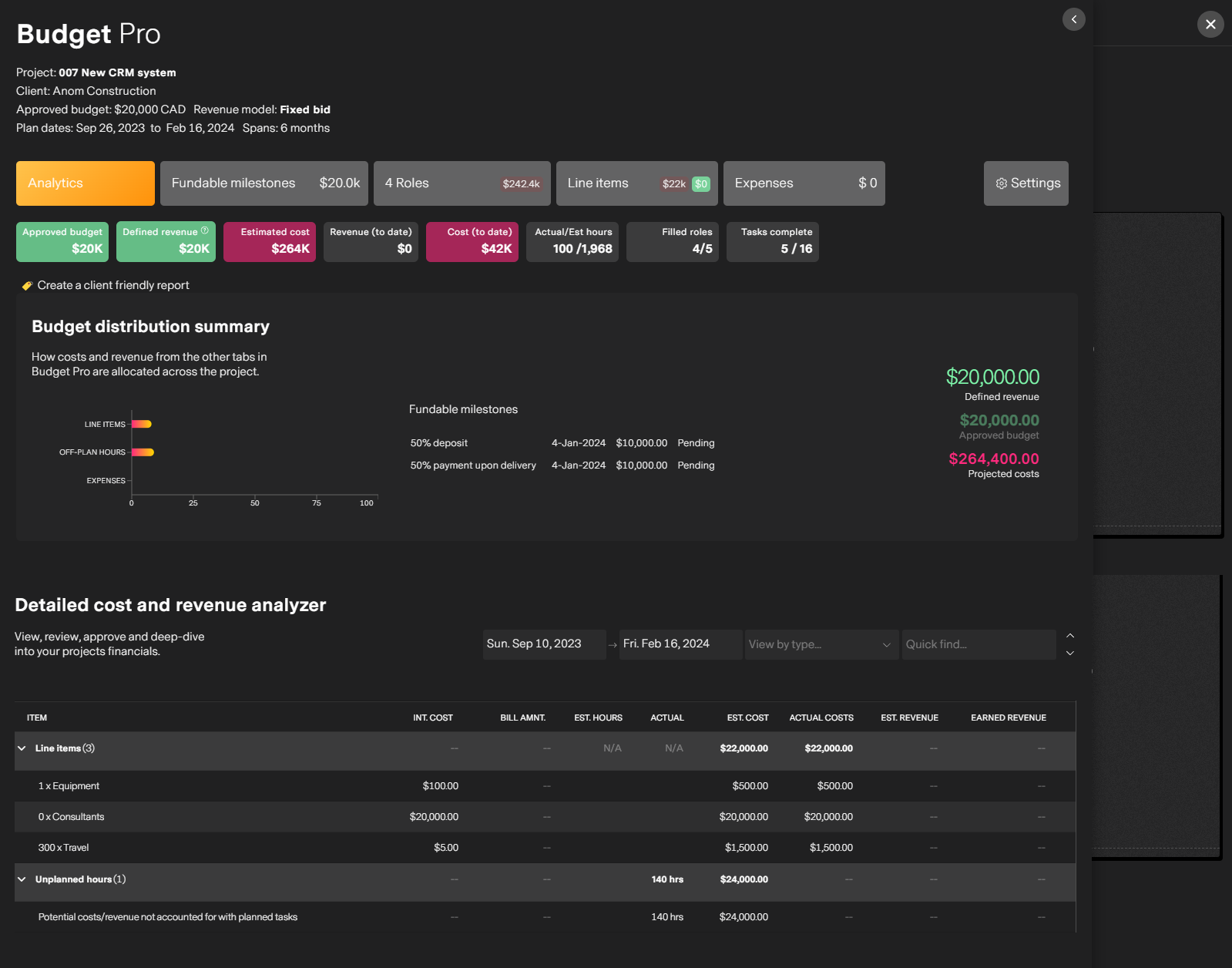
Analytics
Real-time automated insights on your project's financials. At-a-glance metrics and deep dive across all metrics affecting your project
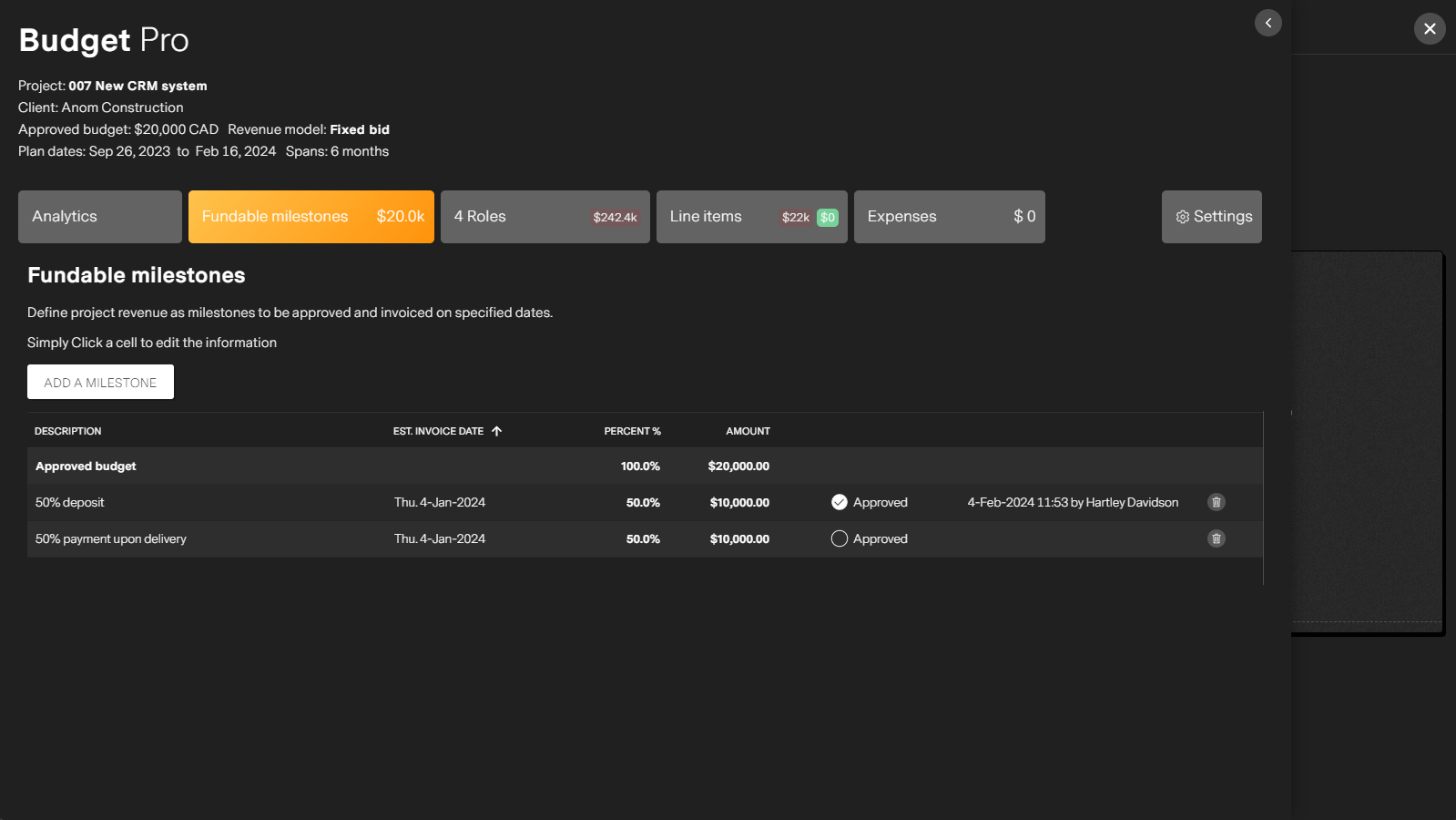
Fundable milestones
Only applicable if you set "Fixed-bid" as your revnue model. Track fundable milestones that can be approved and ready for invoicing.
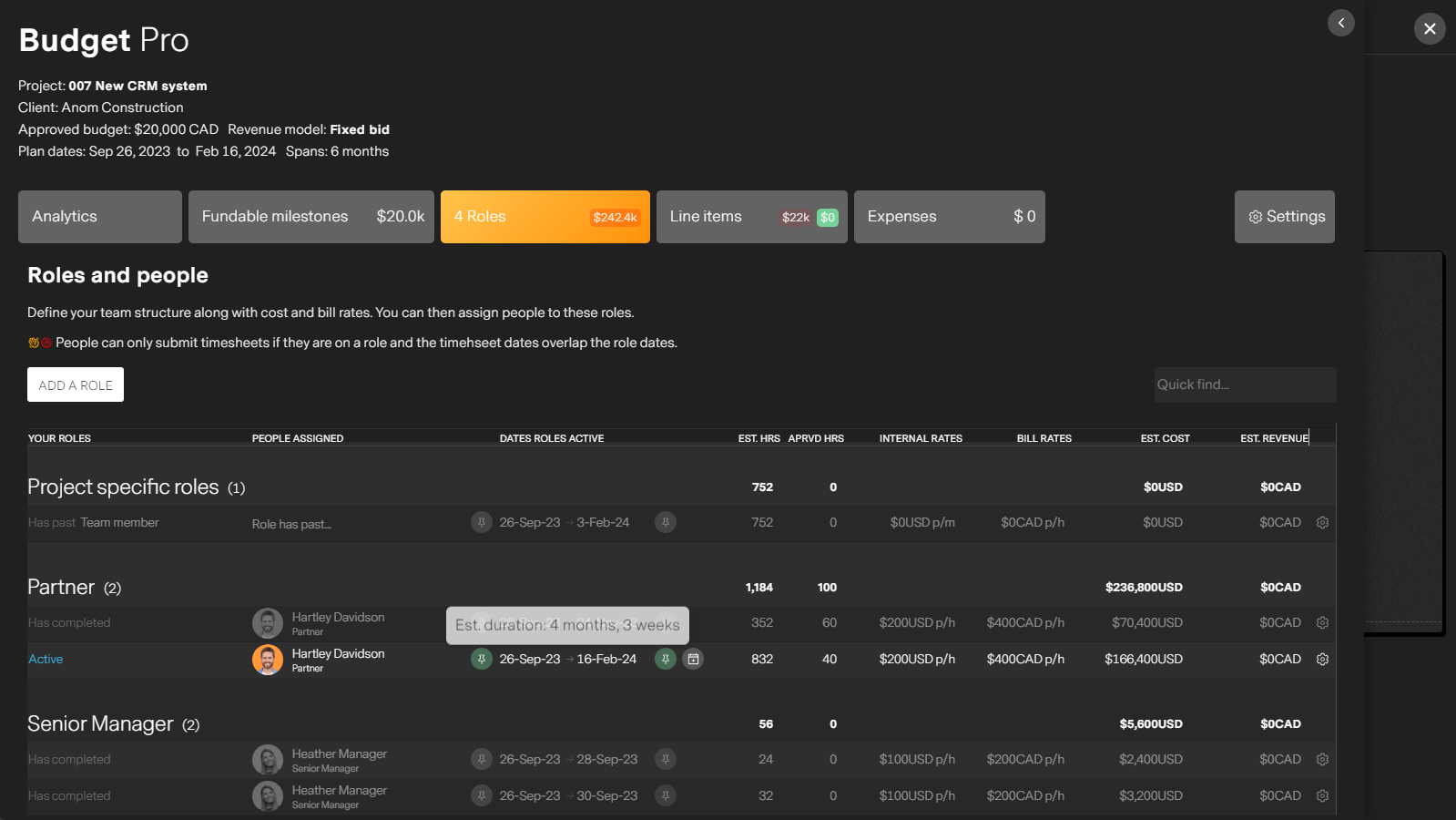
People and roles
Roles represent a placeholder that person can fill (Designer, Engineer, Manager, etc...). The duration of a role and the cost and bill rates define cost and revenue based on time worked.
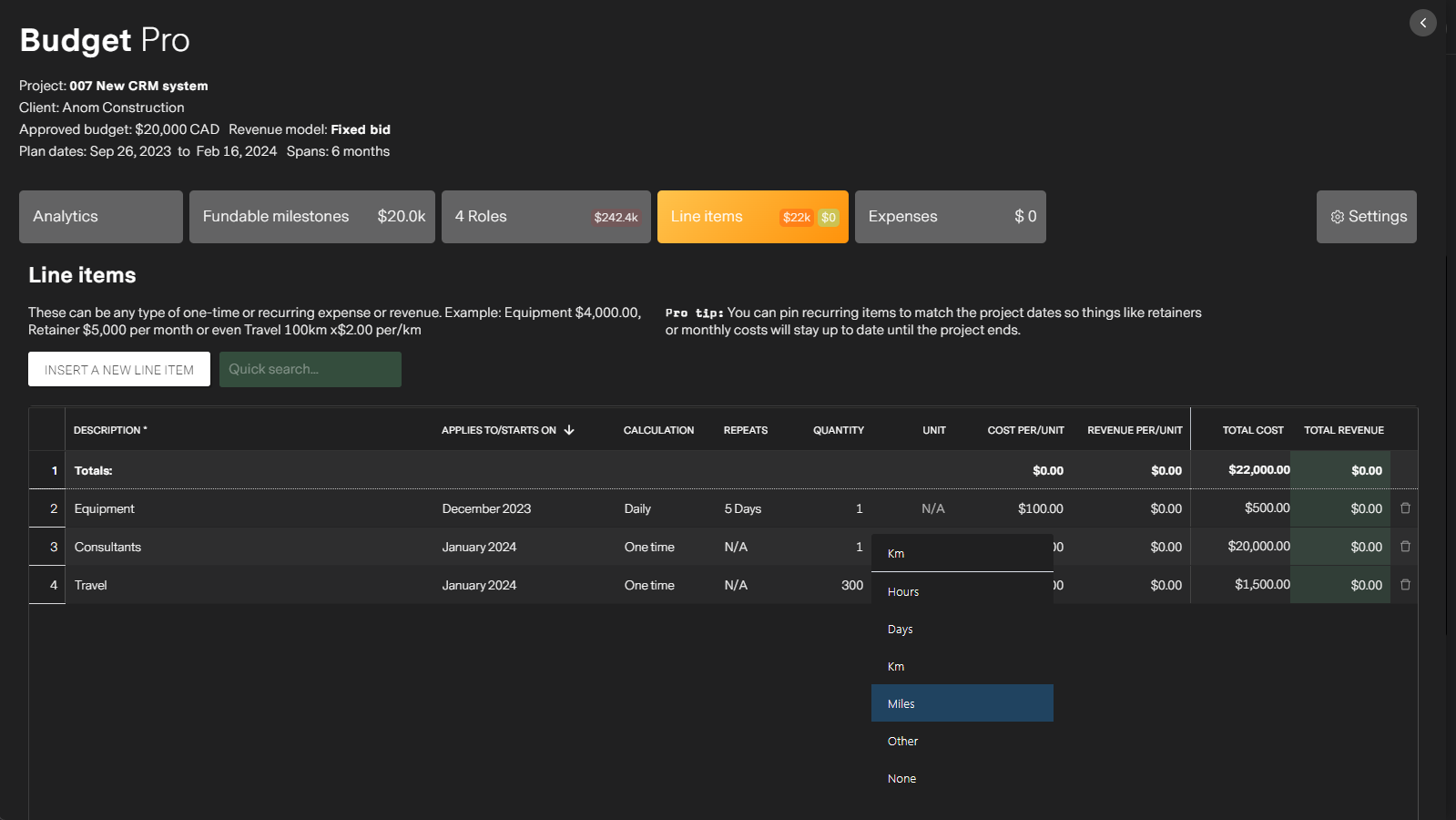
Line-items
Extremly flexible and versatile calculations for one-time and recurring costs and revenue. You can add items like: Travel 300km x $5, Pizzas $45, Monthly server costs $180 per month and more.
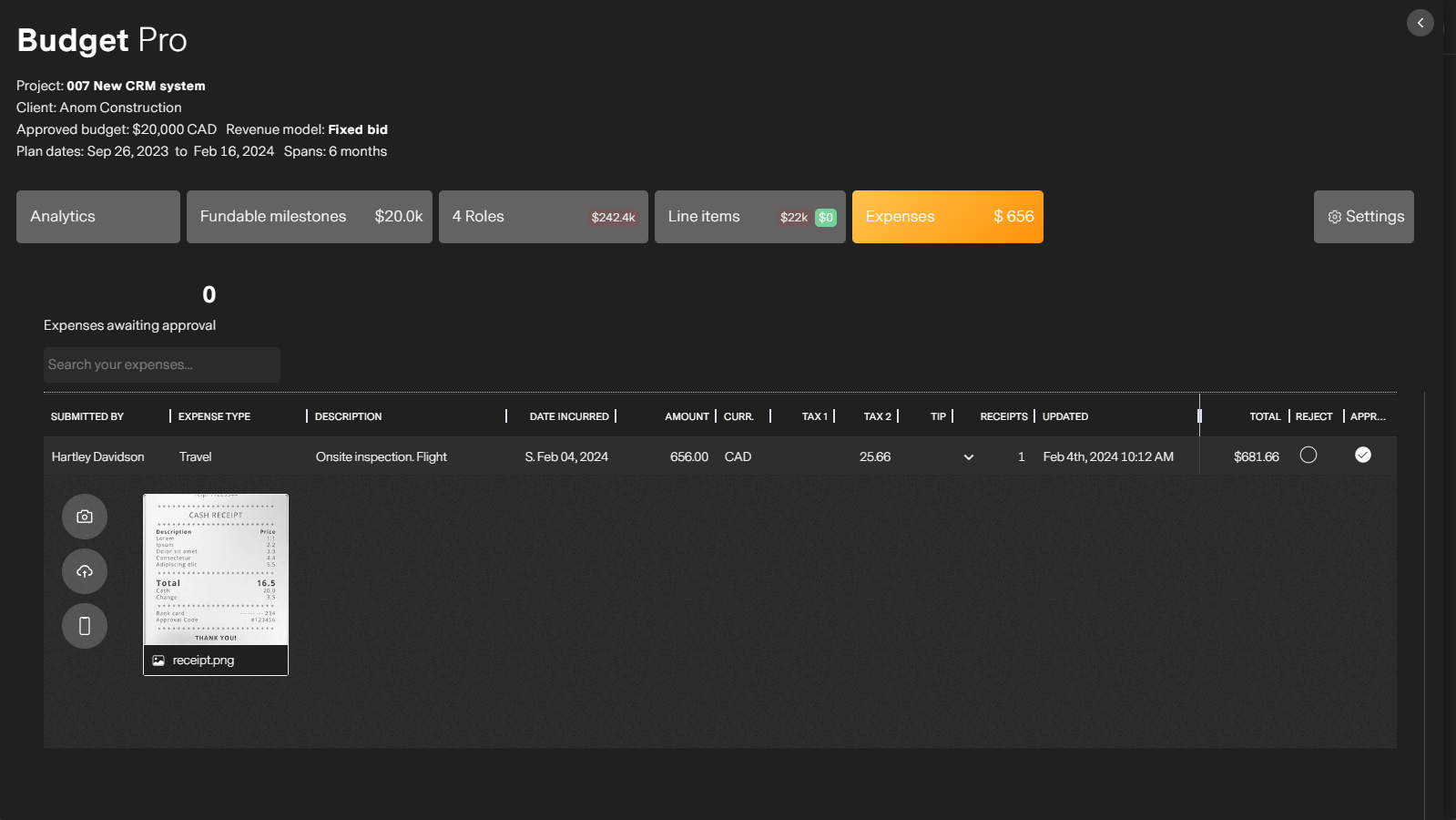
Expenses
Track and approve project expenses directly from Budget pro or the PM Workspace
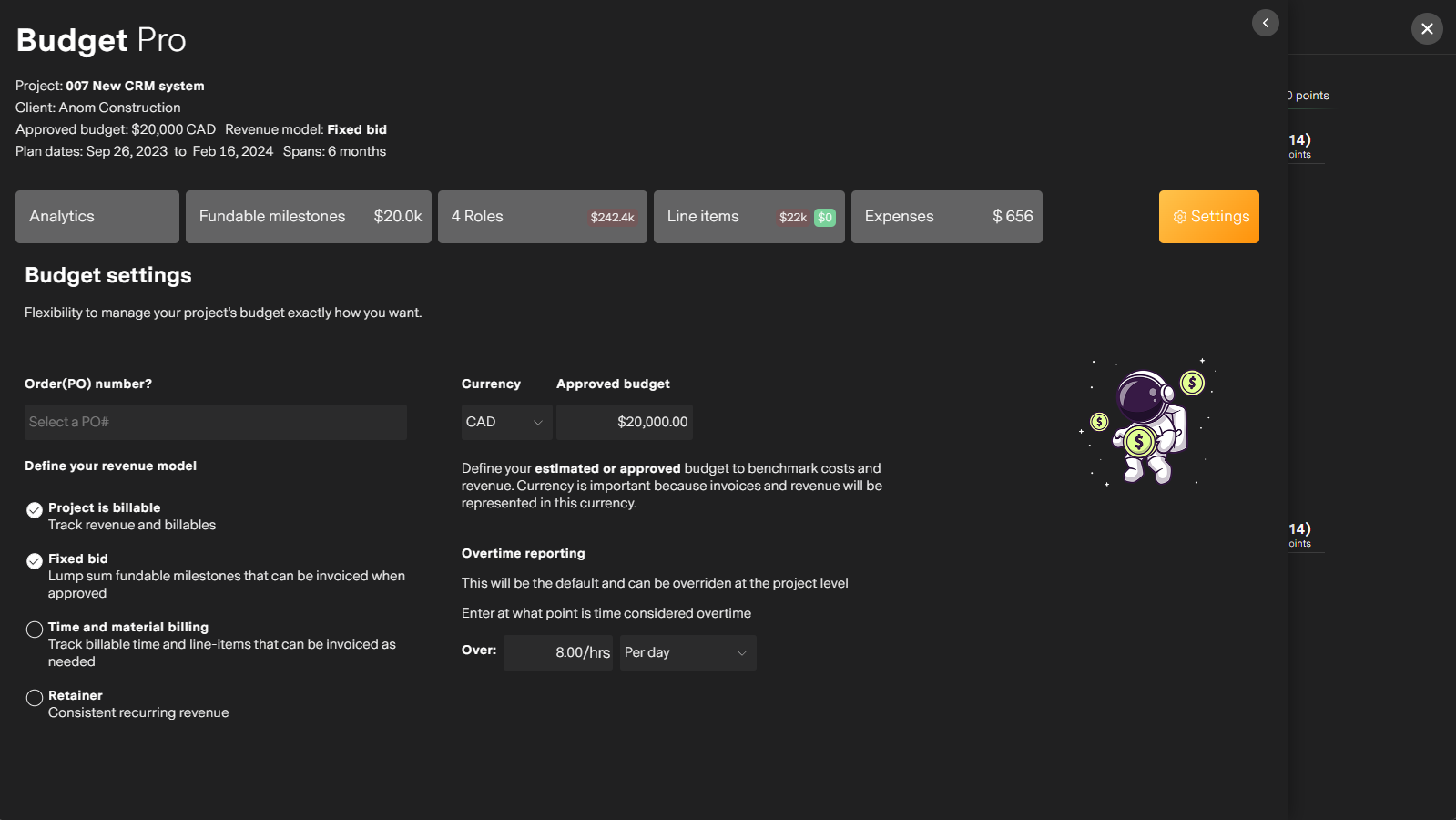
Budget settings
Define key aspects of your budget such as revenue model, currency, OT calculations, billable/non-billable or adding PO number for client projects.
Budget configuration
Options relating to Budget are available in Budget Pro for organizations with an Unlimited subscription.
These settings are first defined when you create the project and can be altered here after.
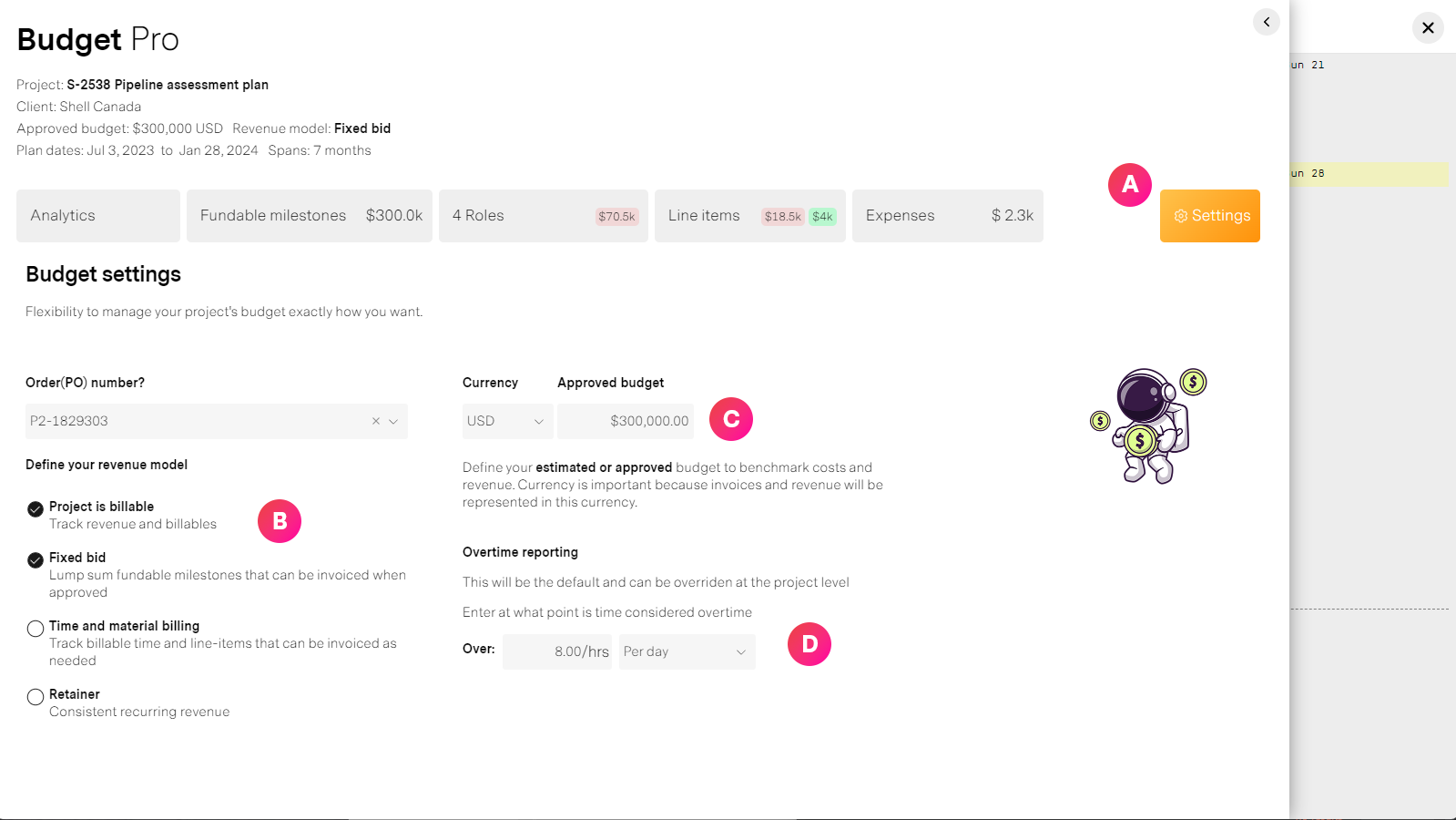
| Label | Feature | Description |
| A | Settings tab | Access this in Budget pro as an Admin or Prohect manager |
| B | Revenue model | A project can be billable or non-billable. For a project to be considered billable it must have a client (specified in Project settings) If a project is not billable, revenue will not be calculated but internal costs will be tracked if you have roles with an internal cost. If a project is billable or is planned to generate revenue...
|
| C | Budget and currency | Set the currency to use for this project's budget calculations. This will affect reports at the Organization level. Approved budget. This can be an approved amount by a client for a fixed-bid, the amount you have budgeted for an internal project, or just an estimate how much you expect to spend as a baseline. |
| D | Overtime settings | missionX automatically tracks overtime for timesheet enabled projects. How you track overtime is defined in the Organization Config panel but can be overridden at the project level. Tracking overtime can be done by OT hours per day or total OT hours each week. See Approving timesheets for more details |