
 Launch
Approving timesheets
Project admins can approve project timesheets but only an organization admin with "Can manage company and project timesheets" enhanced permission can oversee and manage Company and Project timesheets from the Organization workspace.
Project timesheets
Project timesheets can be approved by a project Admin or Project manager.
The easiest way to oversee project timesheets is from the PM Power View in the Project manager's workspace. This way you can approve or reject timesheets for all your projects in one place.
The same interface but limited to one project, is also available from every project in the project's timesheet tab.
Project manager's workspace
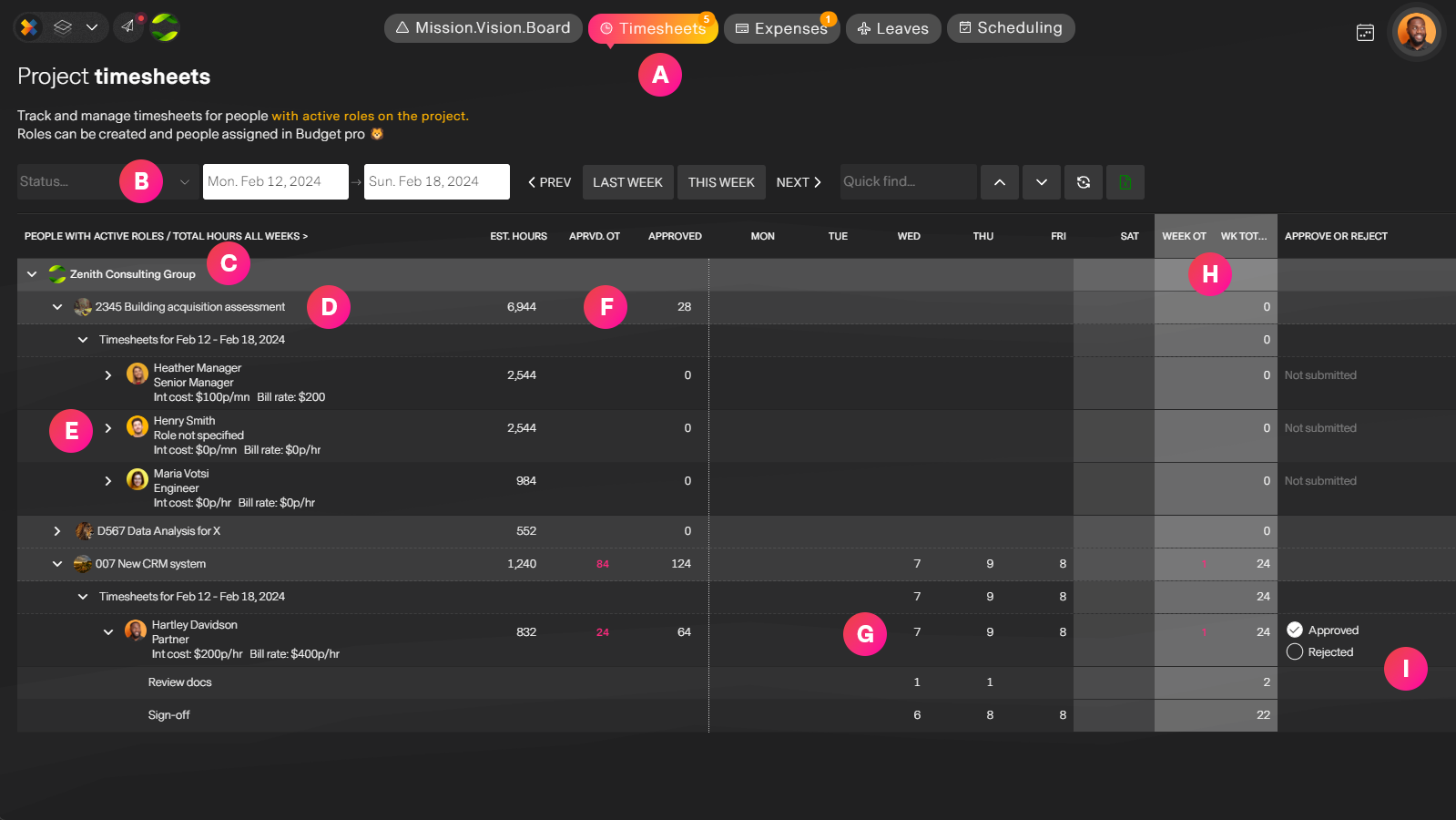
| Label | Feature | Description |
| A | Timesheets tab | The timesheets tab in the PM Workspace. |
| B | Filter, refine and find | To get the view and information you need you can:
|
| C | Organization grouping | Most people will only work for one company but there are cases where your are managing projects across many organizations, especially consulting firms. |
| D | Project grouping | All timesheet data aggregates to the project level. |
| E | Role/Person timesheet | Because timesheets are directly tied to roles, we group timesheets by role. A person can have multiple roles on a project, so it is important to remember that timesheets are not a monolithic entities tied to one person. Expanding a person's timesheet will give you exact details of what was submitted adn how many hours. |
| F | Actuals for each role | Total hours and OT for the person. This helps you keep tabs on how many hours are being approved vs estimated. |
| G | Days of the week | See how many hours are being submitted for each day. |
| H | Weekly totals | Total weekly submitted hours and overtime hours for each line item. Group rows aggregate the hours below it so you can quickly see how numbers are stacking up. |
| I | Approve or reject timesheets | You can approve or reject timesheets. Rejecting a timesheet can also include a comment that the person will see. |
Company and project timesheets
From the organization space, authorized people can manage and even create timesheets for organization members.
Company timesheets
Company timesheets are unique in that they do not allow for free form entries. A user must select from predefined timesheet codes that are specific for company timesheet.
Exmaple: A good example is a medical/sickness timesheet code.This does not require project manager approval so goes directly for organization approval.
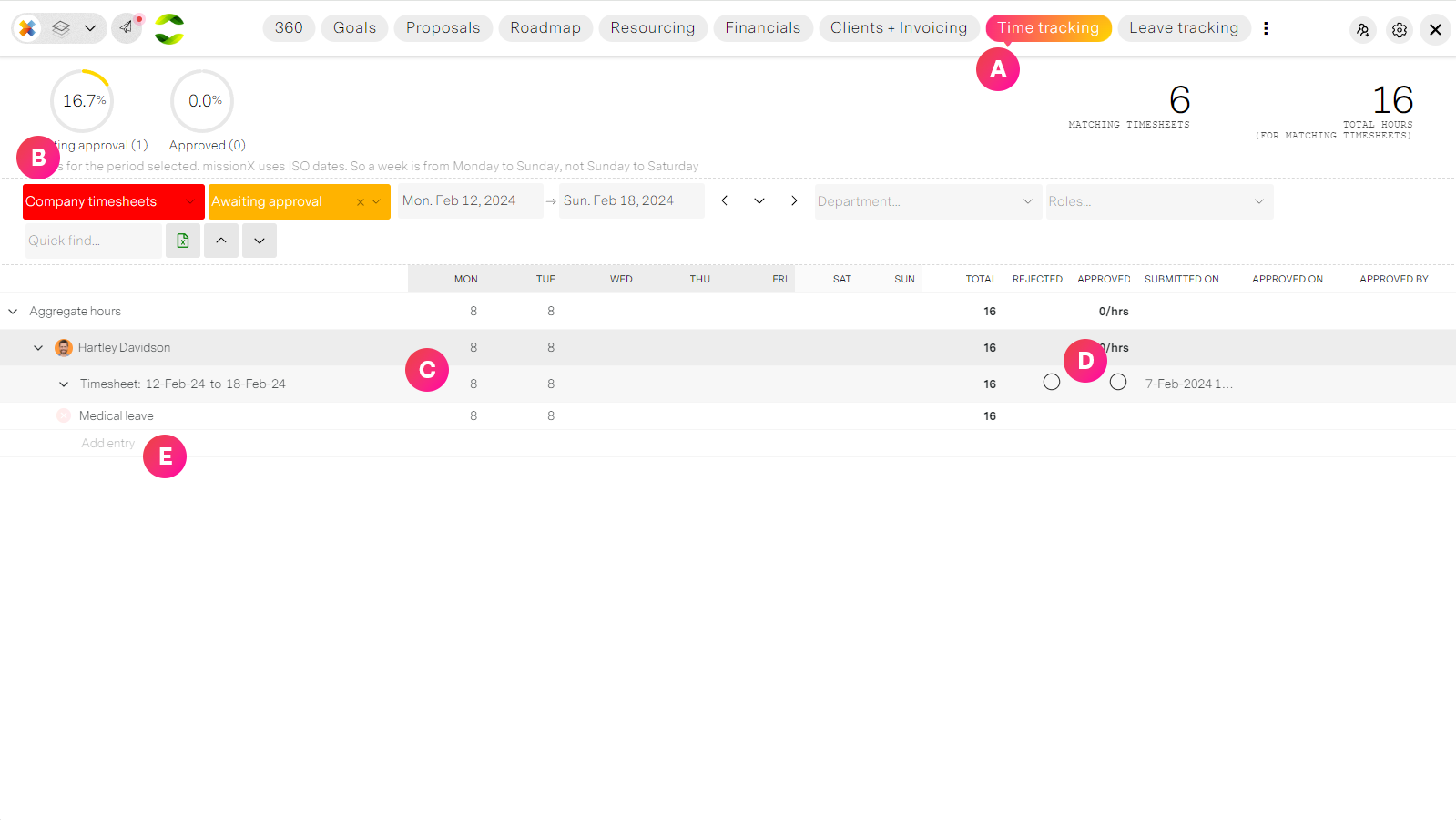
| Label | Feature | Description |
| A | Timesheets tab | The timesheets tab from the Organization workspace |
| B | Type of timesheet selector | You can switch views between Company and Project timesheets. The default is "Company timesheets" with the "Awaiting approval" filter selected. Because Company timesheets are not required, this helps you focus on work-to-be-done. The filter bar allows you to refine and analyze your timesheet data to help you approve timesheets or analyze time across the organization. |
| C | People's timesheets | Timesheets are organized by person and then weeks. This way you can see a person's timesheets for multiple weeks depending on your period selector from the filter bar above. Timesheets can be expanded to view details (timesheet codes and hours) |
| D | Approve or reject | You can approve or reject a timesheet with comments. |
| E | Add entry | You can add a timesheet entry for someone if you wish. A common scenario might be that someone has been ill and not able to submit timsheets. |