
 Launch
mission DOCS
Upload and manage files, versions and approvals on missionX, or create quick links to external drives that will be available from the doument panel and dirctly from all tasks.
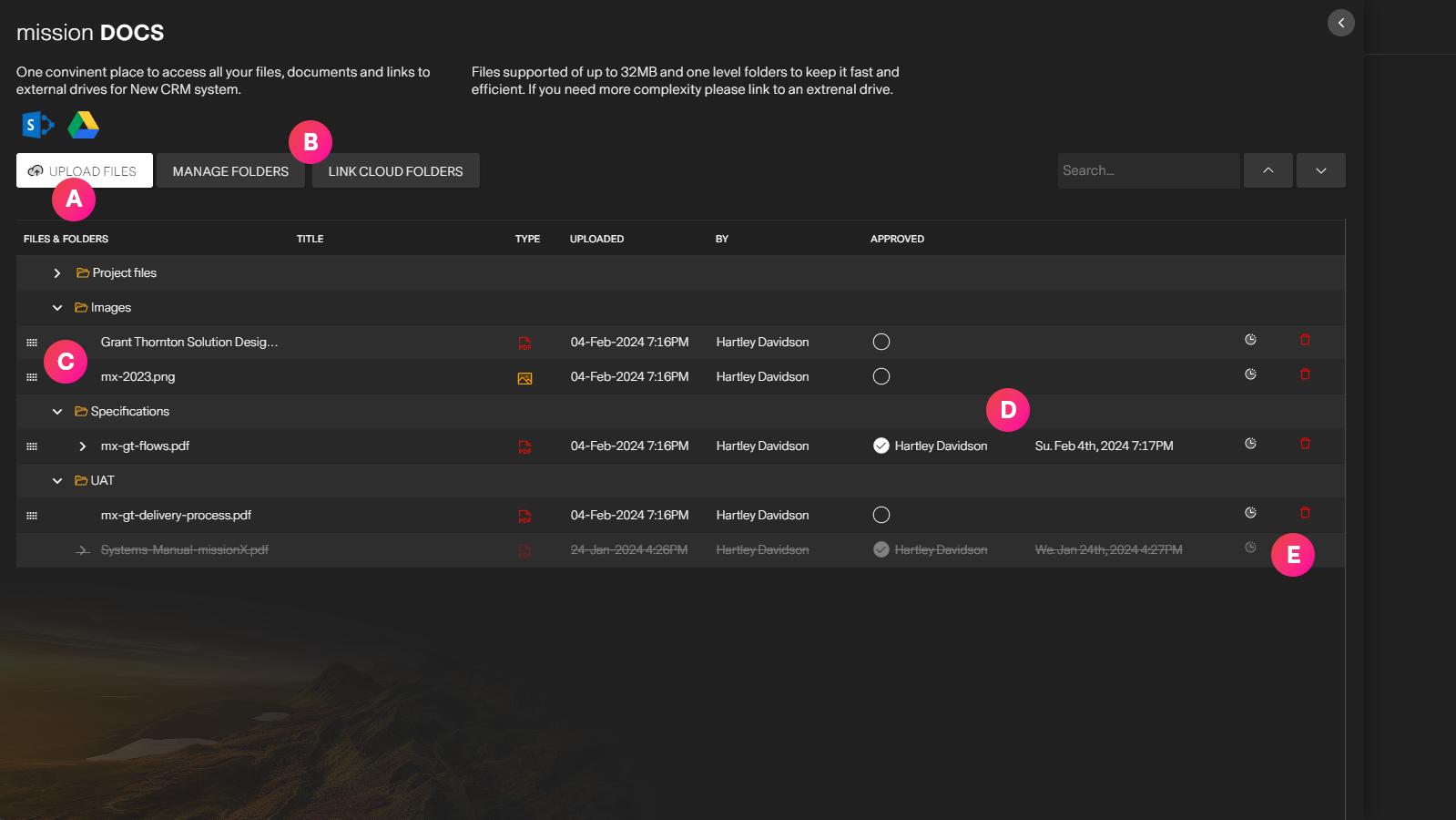
| Label | Feature | Description |
| A | Upload a file | Upload most types of file formats. New files are automatically added to your "Project files" folder Please note: The maximum file size is 32MB. For larger files please add an external drive. |
| B | Manage file folders | Create, edit and delete folders as needed. The root forlder is always "Project files" and cannot be reomved or changed. Please note: missionX does not allow subfolders to keep things simple and easy to follow by everyone. |
| C | Project files and documents | Project files are ordered within folders. To move a file to another folder simply drag and drop to another folder using the dot icons on the far left of the file name. Everytime you upload a file with the same name, missionX will automatically create a new version, the latest version will always be the one shown. To show previous verisons simply expand the file list using the arrow icon next to the title. |
| D | Approvals | Often times it is important to get approval or sign-off on a document. Things like specifications, requierments or creative will sometimes need a go-ahead. Here a user can "approve" a version of the file, capturing the approver's information and time of approval. Critical for client or internal change projects. |
| E | Deleting a file | "Deleting a file" will not actually remove it from the list but it will show as deleted and will no longer be editable. You can do this for any version. To have the file active again you can use a previous version, or upload a new version. |
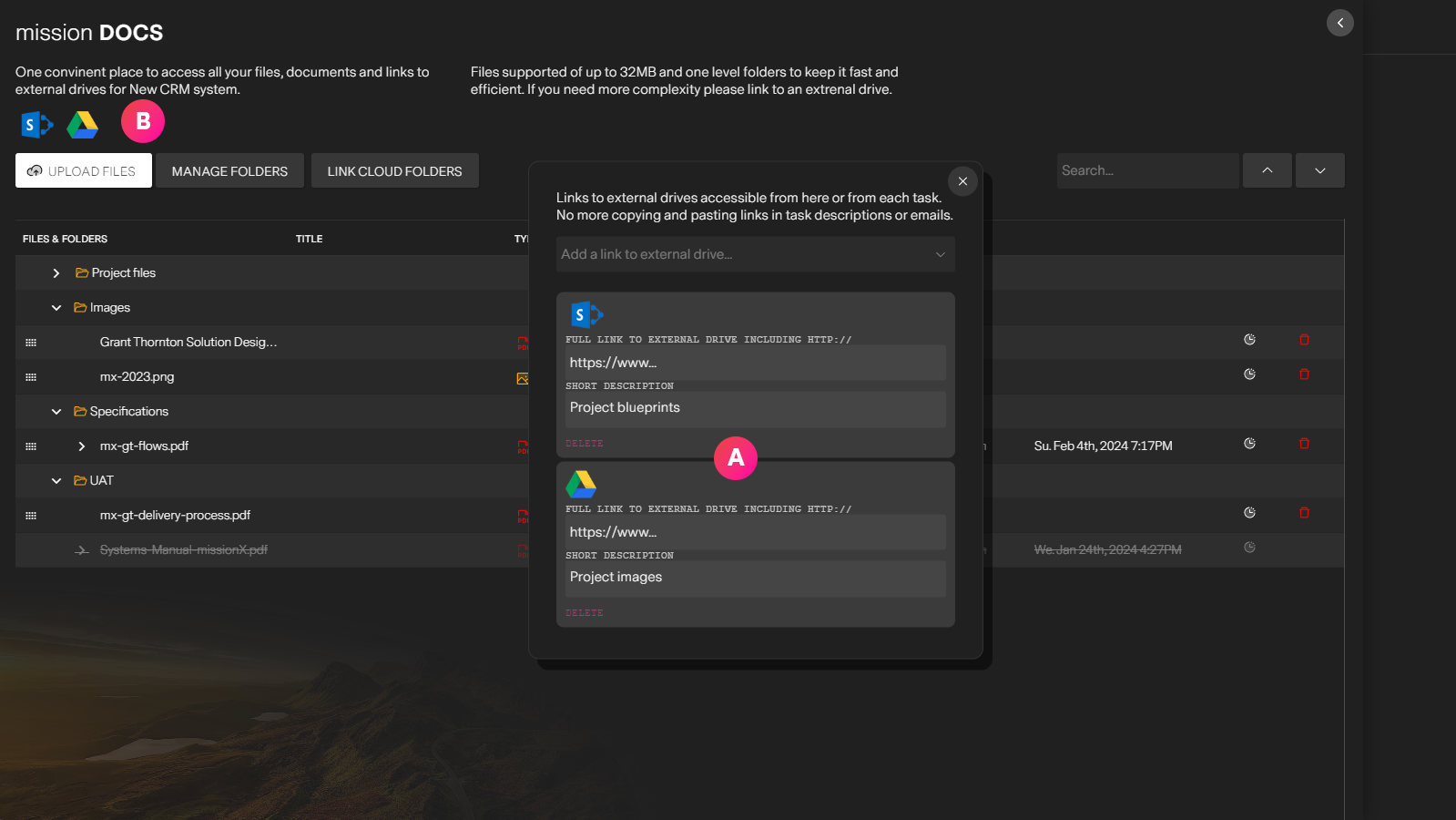
| Label | Feature | Description |
| A | External drive manager | Here you can create and manage links to external drives and folders like SharePoint, Google, GitHub or a completely custom location. For convenience, these links will appear on every project task's mini-workspace and here in mission DOCS. Please note: You must put a complete, valid url to your external drive including https:// |
| B | External drive links | Clicking on a drive icon from here, or the task mini-workspace will launch the drive location you have provided |